
Introduction
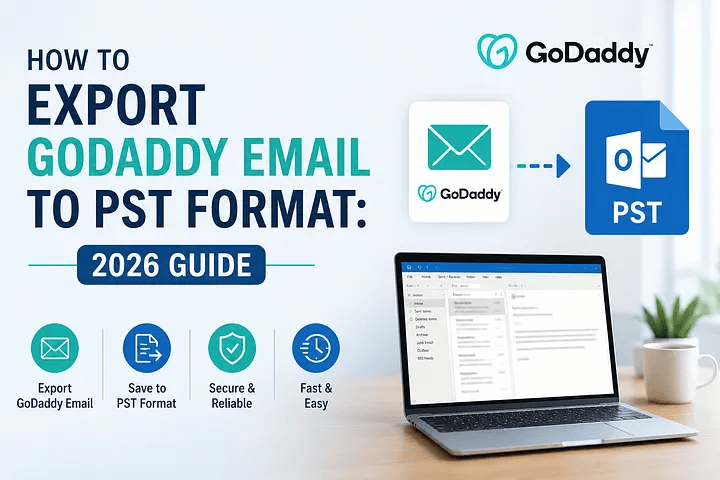
Exporting GoDaddy emails to a PST file is a regular necessity for enterprises and IT administrators. Whether you want a local backup, need to transfer mailboxes, meet compliance needs, or simply archive emails safely outside the cloud, PST export is the most dependable and widely accepted format for Microsoft Outlook.
But here’s where most guides fall short: GoDaddy does not have a straight “Export to PST” button. The method is entirely dependent on the sort of email hosting that powers your GoDaddy account. Some mailboxes are hosted on Microsoft 365 (Exchange Online), while others are hosted on GoDaddy Workspace Email (IMAP), with each having a unique mechanism.
This book describes every method, circumstance, limitation, workaround, and best practice — so you don’t lose emails, miss folders, or export partial data.
Why Would You Need to Export GoDaddy Email to PST?
There are various practical reasons why consumers and organizations require PST export:
- Make a local backup before terminating the GoDaddy account.
- Archive legal and compliance documents.
- Moving from GoDaddy to another email service.
- Importing emails to a new Outlook profile.
- Protecting mailbox data during domain changes.
- Store emails offline for security.
- Moving data from Workspace Email to Microsoft 365.
- Preventing data loss by unintentional deletion.
- Creating historical archives for long-term preservation.
- Resolve mailbox corruption and sync issues.
A PST file provides total portability and offline access to Outlook’s email data.
The Important Step That Most Users Skip: Identify Your GoDaddy Email Type
Before proceeding, you must determine whether your mailbox is:
- GoDaddy hosts Microsoft 365 and Exchange Online.
- GoDaddy Workspace Email (IMAP-based, older email system).
This is absolutely critical to the export process.
How To Identify
Log in to your webmail.
- If the interface resembles Outlook with Microsoft branding, you have Microsoft 365.
- If the interface is Roundcube-style, you have Workspace Email.
- Outlook displays the account type as Exchange → Microsoft 365.
- If Outlook displays IMAP, select Workspace Email.
This distinction determines everything.
Understanding PST and Why Outlook is Required
Microsoft Outlook creates a PST (Personal Storage Table) file. A PST cannot be created without Outlook.
This is why practically all techniques concentrate around:
- Outlook Desktop.
- Microsoft compliance tools.
- Professional export software.
Method 1: Export GoDaddy Email to PST Using Outlook
When your GoDaddy mailbox is hosted on Microsoft 365, this is the most convenient and dependable approach.
Why This Works
When Outlook connects to an Exchange account using Cached Mode, it synchronizes the full mailbox locally. Outlook may export the mailbox to PST using the local cache.
Step-by-Step Instructions
- Install Microsoft Outlook (the Windows version is preferred).
- Open Outlook.
- Add your GoDaddy Microsoft 365 account.
- Ensure the account type is Exchange.
- Wait for full mailbox synchronization. This could take hours for larger mailboxes.
- Go to File > Open & Export > Import/Export.
- Select Export to a file.
- Select Outlook Data File (.pst).
- Choose the top-level mailbox folder.
- Check Include subfolders.
- Select a location to save PST.
- Complete the export.
Important Notes
- Do not export until Outlook confirms “All folders are up to date”.
- Utilize a local drive instead of a network drive.
- Disable antivirus temporarily to prevent interruptions.
Method 2: Export Large Microsoft 365 Mailboxes Using eDiscovery
If the mailbox size exceeds 30–40 GB, Outlook export frequently fails or becomes exceedingly slow.
In this instance, administrators should export PST through Microsoft’s compliance site.
Why is This Better for Large Mailboxes?
- Server-side export.
- Removes Outlook dependence.
- No synchronization issues.
- Legal-grade export.
- Includes stuff that cannot be searched.
High-Level Steps
- Log in to the Microsoft compliance site with administrative credentials.
- Start an eDiscovery case.
- Include the mailbox in the search.
- Run the search.
- Export the results to PST.
- Download with Microsoft’s export tool.
This strategy is suitable for administrators who manage several mailboxes.
Method 3: Export GoDaddy Workspace Email (IMAP) to PST
Workspace Email does not support PST export because it is IMAP-based. You must utilize Outlook.
Step A: Add Workspace Email to Outlook as IMAP
Use GoDaddy’s IMAP server details:
- IMAP server.
- SMTP server.
- SSL ports.
Step B: Allow Full Synchronization
This is the most important aspect. Outlook must download every email from the server.
Step C: Export to PST
Once the sync is complete, utilize the same Outlook Export wizard.
IMAP Has a Major Limitation
It only syncs emails. It does not synchronize:
- Contacts.
- Calendars.
- Tasks.
- Notes.
These must be exported separately from webmail in CSV or ICS format.
Exporting Contacts and Calendars from Workspace Email
Because IMAP does not transport the following items:
- Log in to Workspace webmail.
- Export contacts to CSV.
- Export calendars as ICS.
- Import them later into Outlook.
Method 4: Outlook Web + Desktop Sync Trick
Sometimes Outlook does not display all folders.
Fix
- Open Outlook Web.
- Ensure all directories exist.
- Return to the Outlook desktop.
- Force Send/Receive.
- Then export.
Common Mistakes That Lead to Incomplete PST Files
- Exporting before full synchronization.
- Selecting a subdirectory instead of the mailbox root.
- Using unreliable internet.
- Antivirus screening for PST while exporting.
- Use Outlook Online Mode instead of Cached Mode.
- Exporting IMAP without inspecting all folders.
How Long Does PST Export Take?
Depending on the mailbox size:
- 5 GB takes 10–20 minutes.
- 20 GB takes 1–2 hours.
- 50 GB = 4+ hours.
- IMAP mailboxes take longer to download.
Where is PST Saved?
By default, select Documents → Outlook Files.
After exporting, always relocate it to a safe backup location.
Verifying PST Integrity After Export
Do not presume that export is successful.
Verify:
- Open PST in Outlook.
- Check the number of items in the Inbox.
- Compare to webmail.
- Open emails with attachments.
Handling Archival Mailboxes
If the user owns an Online Archive in Microsoft 365:
- Expand Outlook archives.
- Export individually to another PST.
Exporting Shared Mailboxes
Add the shared mailbox to Outlook first, and then export.
Problems with Very Large PST Files
PST files that exceed 50 GB in size may become corrupt.
Best Practice
- Split exports by year.
- Create numerous PST files.
When Manual Methods Fail
You may confront the following:
- Sync never completes.
- Missing folders.
- Outlook crashes.
- Large mailbox timeout.
- Contacts and calendars are missing.
- Requires multi-user export.
This is when professional tools are required.
Professional Tool for Exporting GoDaddy Email to PST
When manual Outlook export or IMAP syncing fails, slows down, or loses data, a specialized tool becomes useful. The Softaken IMAP Mail Backup Tool is specifically intended to connect to GoDaddy-hosted mailboxes (both Microsoft 365 and Workspace) and export data directly to PST without using Outlook sync.
Key Features That Make It Different
- You can export PST files from a PC that does not have Outlook installed.
- Exports immediately from the server, with no “All folders are up to date” waiting.
- Supports exporting large mailboxes (50, 80, and 100 GB) without crashes.
- Preserves folder structure.
Summary
There is no one-click export from GoDaddy to PST. The proper technique depends on whether your mailbox is Microsoft 365 or Workspace Email.
Outlook export works nicely with small Microsoft 365 mailboxes. For larger mailboxes or multiple users, eDiscovery is preferable. Workspace Email requires IMAP sync via Outlook, but it has restrictions. Professional tools remove all complexity from exporting to provide complete, fast, and reliable results.
If you follow this guide step by step, you will receive a complete PST with no data loss.
Frequently Asked Questions
1. Can I export GoDaddy emails to PST directly from the GoDaddy webmail?
No. GoDaddy webmail (including Microsoft 365 and Workspace) does not have a PST export option. You must utilize Outlook, Microsoft’s compliance tools, or a professional export utility.
2. Do I need Microsoft Outlook to create a PST?
Yes, PST is the Outlook data format. To generate it, you must use Outlook or Microsoft’s compliance export tools.
3. How long should I wait to export after adding the account to Outlook?
Wait until Outlook displays “All folders are up to date.” For large mailboxes, this can take many hours.
4. Do PST exports include attachments?
Yes. Attachments to emails are included in both Exchange and IMAP exports.
5. Can I export a mailbox that is greater than 50 GB to PST?
Outlook has problems with extremely large mailboxes. Use Microsoft eDiscovery or a professional tool for big amounts of data.
6. Can I export many GoDaddy users to separate PST files at once?
Not with Outlook. You require administrative tools such as eDiscovery or a professional solution. Not with Outlook. You need admin tools like eDiscovery or a professional solution.



Leave a Reply