
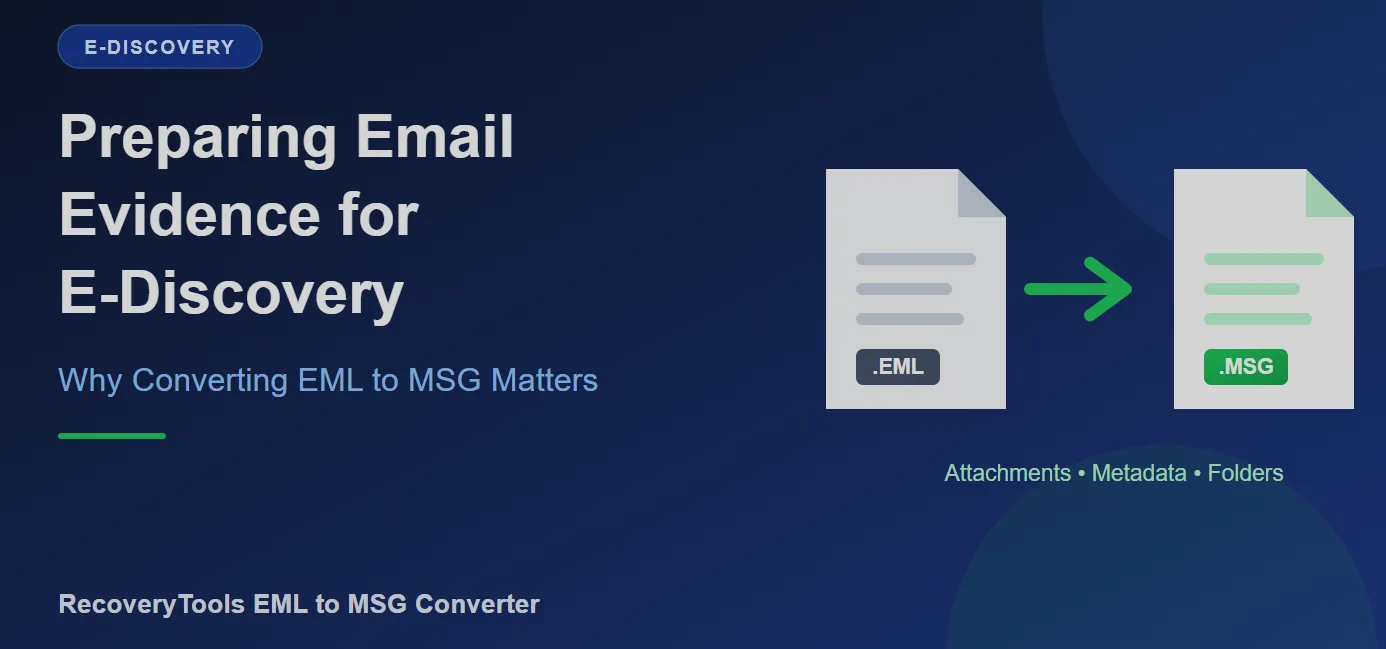
When a legal dispute, audit, or HR investigation begins, reviewers often ask for email first. The problem is that the emails rarely arrive in a tidy, review-ready state. They come as thousands of loose EML files exported from old mail servers, Thunderbird profiles, or Apple Mail archives. If your review team works in Outlook, those files need to be in the right format before anyone can start. This post explains why that format is MSG, what can go wrong during conversion, and how to handle it reliably.
Why EML Files Create Problems in Legal and Compliance Work
EML is a portable, standards-based format, which makes it popular for exporting messages. But Outlook supports it only in a limited way. Reviewers who try to open large EML collections in Outlook run into inconsistent behavior, and the format cannot hold Outlook-specific details such as categories, flags, and notes.
MSG is Outlook’s native format. It is built on Microsoft’s MAPI standard and keeps extended properties that EML leaves out. For teams that need to tag, categorize, and organize messages during review, MSG is far more practical.
What Is at Stake During Conversion
In investigative and compliance work, a conversion that quietly alters a message is worse than no conversion at all. Before choosing an approach, check that it protects these elements:
- Attachments: Contracts, spreadsheets, and images must come through intact.
- Inline images and formatting: Signature logos and embedded graphics should not turn into broken placeholders.
- Timestamps and metadata: Dates, senders, and recipients must match the originals.
- Folder structure: The way messages were organized often gives context to reviewers.
- Privacy: Sensitive correspondence should not be uploaded to an unknown third-party server.
Why the Built-In Route Struggles at Scale
Outlook’s own import and Save As workflow can handle a few messages, but legal datasets are rarely that small. The built-in import is capped at roughly 25 MB, only reads files in the top-level folder, and requires saving each message as MSG one at a time. If Outlook closes mid-process, the import is cancelled. For a dataset of thousands of emails, that is not a workable plan.
A Better Approach: RecoveryTools EML to MSG Converter
For bulk, accuracy-sensitive conversion, many professionals use a dedicated desktop utility. The RecoveryTools EML to MSG Converter is built for this situation, and several of its capabilities map directly to the concerns above.
Complete data preservation. The tool carries over formatting, hyperlinks, attachments, inline images, timestamps, metadata, and MIME encoding, so the MSG output reflects the original messages.
Folder hierarchy intact. It maintains your original folder structure and can extract from multiple folder trees, so reviewers see the same organization the source system had.
Selective conversion with filters. You rarely need every email in a dump. Advanced filters let you narrow by date range, From, To, Subject, and included or excluded folders. A legal team can convert only the messages from specific custodians within a defined period, saving time and keeping the review set focused.
Bulk processing without size limits. Instead of handling files one by one, you can convert large volumes in a single run, with no file size limitation.
Works without Outlook. The converter is a standalone application, so you do not need Outlook installed on the conversion machine.
Local processing. The software runs on your desktop and does not upload data to any server, which matters when handling confidential correspondence.
Log reports. A detailed log lets you verify what was converted, supporting documentation and defensibility.
The tool is available for both Windows and Mac, and it accepts EML files from any source, which helps when a dataset comes from several different email clients.
How to Use It: A Quick Walkthrough
The workflow is simple enough that no technical training is required:
- Install and launch the software.
- Load your EML files or the parent folder using the Select Files or Select Folders option.
- Use the folder preview to check or uncheck the items you want.
- Choose MSG as the saving option, set a destination path, and adjust file naming if needed.
- Optionally apply advanced filters such as a date range or sender.
- Click Convert and review the log report when the process finishes.
Test Before You Commit
A free demo version is available, so you can run a small sample, open the resulting MSG files in Outlook, and compare them with the originals before purchasing. For legal and compliance work, that kind of verification step is good practice with any conversion tool.
Final Thoughts
Email evidence is only useful if reviewers can open it, search it, and trust it. Converting EML to MSG puts your messages in the format Outlook handles best, but the method you use determines whether details survive the trip. For anything beyond a few files, a purpose-built converter that preserves attachments, metadata, and folder structure is the safer choice. If you are preparing a large dataset for review, download the demo and see how it handles your own files.



Leave a Reply