
PDF is one of the most commonly used document formats, but it is not always the easiest format to work with. A PDF may contain text, images, tables, hyperlinks, and other elements that are difficult to reuse or edit. If you simply want to read the text in a simpler form, extract information, edit the content, or use it in another application, converting the PDF into a more suitable format can make things much easier.
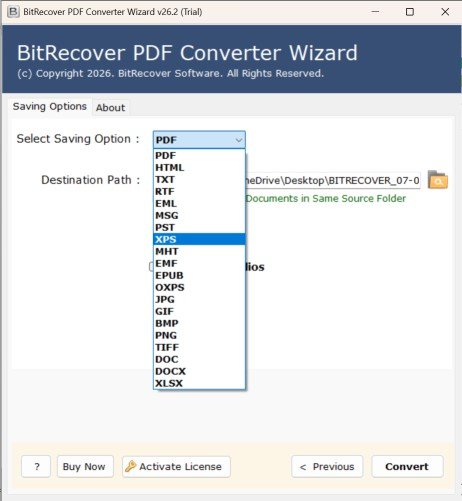
This is where BitRecover PDF Converter can help. It is a desktop-based PDF conversion tool that lets users convert PDF documents into multiple commonly used formats. The software supports 19 output formats, including TXT, RTF, DOC, DOCX, HTML, JPG, PNG, TIFF, GIF, BMP, EML, MSG, PST, XPS, MHT, EMF, EPUB, OXPS, and PDF.
What Does a Readable PDF Format Mean?
When someone says they want to make a PDF “readable,” they may mean different things. For example, you may want to extract only the text from a PDF, open its content in Microsoft Word, view its pages as images, or access the information through a web browser.
For text-focused reading, TXT is a simple option because it removes most formatting and keeps the text. If you want to retain more formatting while making the content easier to edit, DOC, DOCX, or RTF may be more appropriate.
For browser-based access, HTML can be useful. Similarly, JPG, PNG, or TIFF can be helpful when you want each PDF page as an image. BitRecover PDF Converter provides these options from a single interface, so you do not have to use a different converter for every requirement.
Why Convert PDF to a Readable Format?
There are several practical reasons for doing this. A PDF might be easy to view but difficult to edit. Converting it to DOC or DOCX can make the content easier to modify. If you only need the written information, TXT can provide a simpler version without unnecessary document elements.
You may also need to reuse information from a PDF in another application. For example, HTML can make PDF content easier to access through a browser, while image formats can be useful for presentations, websites, or visual references.
Another common reason is accessibility. Some applications do not properly handle every PDF, especially when the document contains unusual formatting or embedded elements. Converting the document into another supported format can make the information easier to access.
How to Convert PDF to a Readable Format?
Using BitRecover PDF Converter is fairly straightforward. You do not need Adobe Acrobat or another third-party application to perform the conversion.
Step 1: Install the Converter
Download and install BitRecover PDF Converter on your Windows computer. The software works as a standalone desktop application.
Step 2: Add PDF Files
Open the software and select the PDF files you want to process. The tool provides options for selecting individual files or folders, which is useful when you have multiple PDFs to convert.
Step 3: Choose a Readable Format
Select the format that matches your requirement. Choose TXT if you primarily need plain text. Select DOC or DOCX if you want an editable document. You can choose RTF when you need a simple document format that retains more formatting than TXT.
You can also select HTML, JPG, PNG, TIFF, or other available formats when your requirement is different.
Step 4: Select the Destination
Choose where you want the converted files to be saved. The software provides multiple storage options, including saving the output in the source folder or another location on your computer.
Step 5: Start the Conversion
Finally, click the conversion option and let the software process your PDFs. Once the process finishes, open the destination folder and check the converted files.
Convert Multiple PDFs at Once
If you have only one PDF, manual conversion may not seem like a big task. The situation changes when you have dozens or hundreds of files. Processing each document separately can quickly become repetitive.
BitRecover PDF Converter supports batch conversion, allowing users to work with multiple PDF files together. This can save time when converting a collection of reports, invoices, research documents, or other PDF files. The software also provides selective conversion, so users can choose the files they actually need instead of processing everything.
Is Offline PDF Conversion Useful?
Yes, particularly when you are working with private or confidential documents. BitRecover PDF Converter works offline, so you can convert your PDFs directly on your computer instead of uploading them to an online conversion website. BitRecover describes the software as an offline PDF exporter intended for secure handling of confidential PDFs.
This can be useful for business reports, personal documents, financial records, and other files that you would rather keep on your own computer.
Which Format Should You Choose?
The right output format depends on what you want to do with the PDF.
- TXT: Best when you only need simple, readable text.
- DOC/DOCX: Useful when you need to edit the document.
- RTF: Suitable when you want editable text with basic formatting.
- HTML: Helpful for browser-based access.
- JPG/PNG/TIFF: Suitable when you need PDF pages as images.
- EML/MSG/PST: Useful for specific email-related workflows.
- EPUB: Suitable for certain ebook and reading requirements.
The main advantage is that BitRecover PDF Converter gives you these choices in one application rather than forcing you to find a separate tool for every conversion requirement.
Final Thoughts
Making a PDF more readable does not always mean simply opening it in another PDF reader. Sometimes you need plain text, an editable document, an HTML page, or an image instead. Choosing the right format depends on how you plan to use the information.
BitRecover PDF Converter provides a simple way to handle these different requirements. With multiple output formats, batch conversion, selective file processing, offline functionality, and no requirement for Adobe Acrobat, it can be a practical choice for users who regularly need to convert PDFs into more accessible or reusable formats.





Leave a Reply