
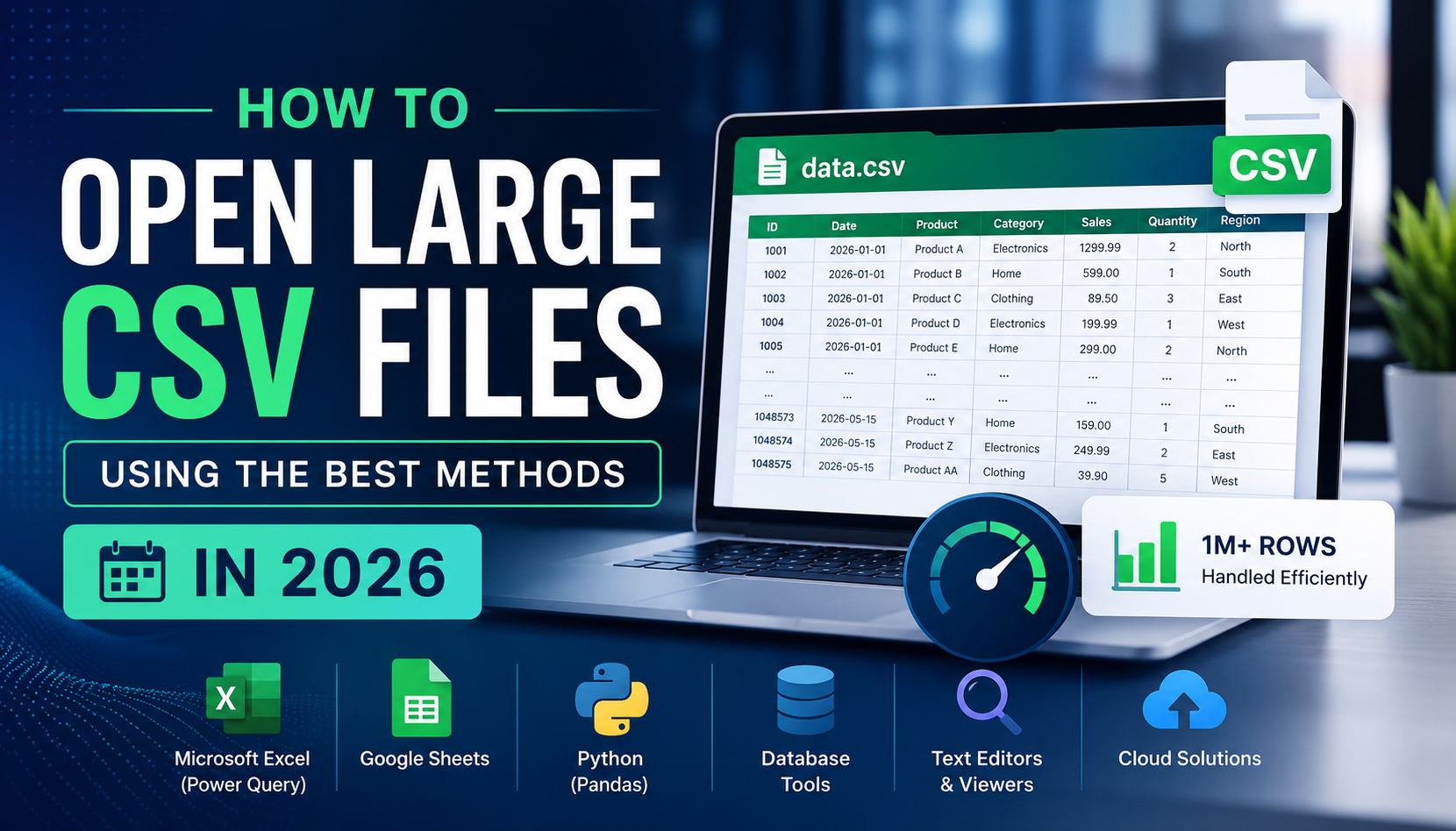
Are you also tired of large CSV files and cannot able to open them? You are on right blog. Here we will cover best ways to open large CSV files using MS Excel, any text editor like Notepad++, using Power Query, and an automatic software that can effectively help to resolve your problem.
CSV files are usually used to share and store large datasets while preserving data structure. Over time, these CSV files start to increase their size. In such scenario, to open very large CSV files, MS Excel is first preference for all IT admins or professionals to handle all data in same workbook. However, due to its row size limitations, users struggle to open and view oversized CSV data files.
Never mind, this blog explains all possible solutions to solve CSV file not opening error. Let’s get started by explaining each one, including all important data.
Quick Suggestion to Fix “CSV File Cannot Open” Error
If you are unable to open huge & multiple CSV datasets, you should opt for SysTools CSV Split Tool. This automated software helps to split CSV into smaller files, which can help reduce their size and allow users to import them easily. Additionally, one just has to import their CSV files into system and split them based on size and rows. As breaking down into smaller files can help users to handle files effectively. To understand its working and features, download its trial version for free.
Why is it Difficult to Open Very Large CSV Files?
In this section, we have listed some root causes why opening large CSV files becomes challenging for users. Look below for more.
- If you are businessman or an admin for large organisations, then it is required to analyse your dataset, which is stored in CSV format.
- Some progams give CSV files as output; it becomes important to open and check them once.
- To edit data in your CSV files, such as removing unwanted records, blank rows, etc.
- Also, these large files can take few minutes or even more time to load and process.
Manual Methods to Open Oversized CSV Files
One can effectively solve this error using these approaches.
- Using MS Excel
- Try Text Editor (Notepad++)
- Use Power Query
Let’s look at their explanation along with working.
#1: Open Large CSV Files in Excel
Steps:
- Launch MS Excel on your system.
- Press File tab and then click Open.
- Search for data file and choose it.
- Finally, tap Open.
After pressing button, you can use Power Query to import your large CSV files.
Note: This applications conations some row limitations that is max 10,48,576 only. If your data exceed then, it will not accept and you might get “CSV file cannot open” error.
#2: Try Text Editors (Notepad++)
Users can also use some text editors to preview, as these CSV files are text files only that contain structured data. Follow steps to open.
Steps:
- If you do not have Notepad++, then install and run it.
- After installation, right click on CSV data file.
- Select Open With and then choose Notepad++.
#3: Using Power Query
This method is ideal for batch processing but only for experts and professionals.
Steps:
- Open Excel on your system.
- Choose Data tab, then press Get Data and From Text/CSV option.
- Select your CSV data file to open.
- At last, load and preview large CSV dataset.
Why Manual Methods Are Not Recommended?
- These approaches do not offer any direct option to open large CSV files.
- Very time taking process as it requires a lot of manual effort.
- Due to row limitations, it becomes next to impossible to import into applications.
- There are high chance of original data structure and formatting loss.
- User has to open very large CSV files one by one, as it does not support batch processing.
- It also might result in system crashing or freezing.
Thus, as an expert, we suggest using certified solution that can give you an accurate and reliable result. Let’s walk through an explanation of advanced tool.
How to Fix “CSV File Cannot Open” Error Using Advanced Software?
Whether you are an expert or casual user, we recommend using best automated software designed by SysTools, as it does not require any technical knowledge or skills to use this software. This is compatible with both Mac and Windows machines for opening large CSV files. Look below for more features.
More benefits of this Proactive Utility
- This premium software supports bulk CSV files to handle them without file size restrictions.
- This is two in one solution that can split and merge two CSV file with same columns.
- It is completely secure and offline desktop based which can run without any internet connection.
- Users can easily split their oversized CSV dataset based on size, row, and same header.
How to Open Large CSV Files Professionally?
- Firstly, user have to download and launch the aforementioned software on their respective computer. After installation, click on Split CSV button.
- Now, tap on Add Files and Folder option to import large CSV files into system.
- One can easily preview their added CSV files in system. Then press Next button to open very large CSV files.
- After this, choose splitting features based on size, records, and header row.
- Browse location path to save resulant CSV file where you want to.
- Finally, press Split button to start process and wait for some time until it is completed.
- Later, one can also view report to verify their CSV data structure and formatting.
Expert Tips to Manage Giant CSV Files
- One can archive their CSV data files to reduce CSV file size.
- Always keep one copy of original data file as backup.
- Before opening large CSV files in Excel, it is necessary to break down huge CSVs.
- Try to use a 64 bit operating system for better performance.
- Remove all unnecessary data rows and columns from CSV dataset.
Conclusion
This article has covered all smart techniques to open large CSV files using MS Excel, Notepad++, Power Query, and an advanced software developed by SysTools. Instead of using manual methods, we recommend using dedicated tool, as they do have many limitations that have been discussed above. If you are still facing problem related to CSV file not opening, then contact our support team via live chat.



Leave a Reply