


If you’re switching domains, revamping your online store, or launching a new WooCommerce setup, moving your product data might seem like a big hassle. But we assure you, WooCommerce product import and export doesn’t have to be a headache.
Instead of adding each product, you can automate the process using the right WordPress plugin. The WebToffee Product Import Export Plugin offers a reliable solution for fast and accurate WooCommerce product migration.
So, ready to migrate your WooCommerce products? This guide will walk you through how to export and import products using the free version of the WebToffee Product Import Export plugin.
Key Takeaways
- Product migration becomes efficient with a dedicated WooCommerce import-export plugin.
- WebToffee’s import and export plugin supports both quick data transfers and advanced migration jobs.
- The premium version of the WooCommerce Export Import Products plugin unlocks scheduling, FTP/SFTP support, and custom field migration.
Read also 16+ Must-Have WordPress Plugins for Your WooCommerce Store
Table of contents
Before you start
- Back up both stores (files and database), so you can roll back if an import goes wrong.
- Match the setup: install the same WooCommerce version and the plugins that add product data (for example brands, custom fields or product add-ons) on the new store before importing.
- Create categories, tags and attributes in advance if you want full control over their slugs; otherwise the importer creates them for you.
- Keep the old store online until the import is finished, because product images are downloaded from their original URLs during the import.
- Use SKUs: give every product and variation a unique SKU, so the importer can match and update products instead of creating duplicates.
How to Export WooCommerce Products Using a Free Plugin?
Before transferring products to a new store, you’ll need to export them from the existing WooCommerce store. You can, of course, export them manually, but as you can see, we can simplify the process using the WebToffee plugin for faster results.
Here’s how we do it:
1. Start by installing and activating the plugin:
- Go to Plugins > Add new on your dashboard.
- Search for “Product Import Export for WooCommerce”, then install and activate it.
- Once activated, go to WebToffee Import Export (Basic) in the WordPress dashboard.
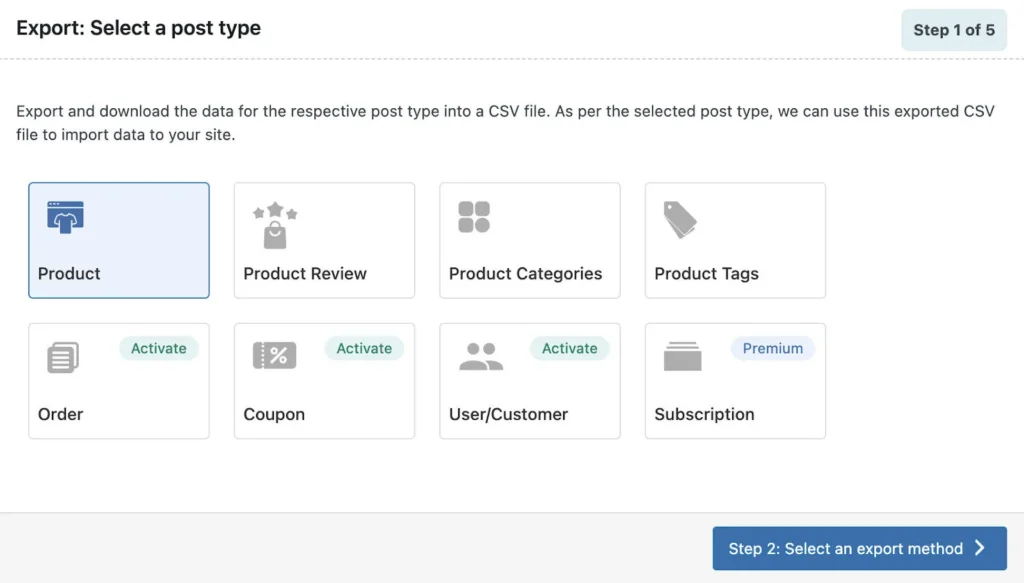
- In the opening settings, go to the Export tab and select Product.
- Click on Step 2: Select an export method to proceed to the next migration step.
2. Choose the product export method.
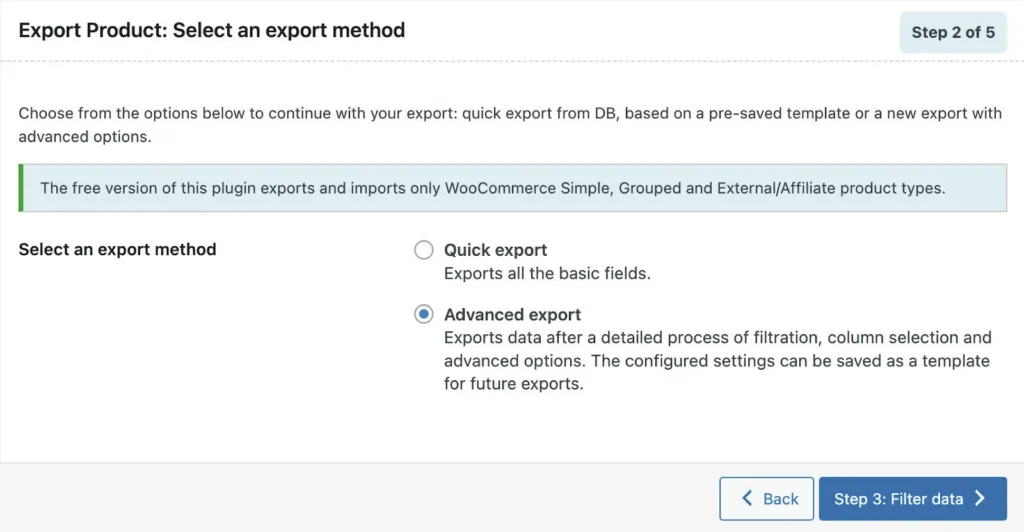
You can choose between Quick export and Advanced export.
- Quick Export: The export method allows you to export all your products instantly with just one click, including all essential fields.
- Advanced Export: This method lets you customize your exports by selecting specific products or fields to include or exclude. Customize what’s exported using filters, column mapping, and ordering. Let’s select the Advanced export method.
- Click Step 3: Filter data to refine your export settings.
3. Select the data you want to export:
- Here, you can apply any filters, such as limiting product count or selecting specific attributes to narrow down the data you want to export.
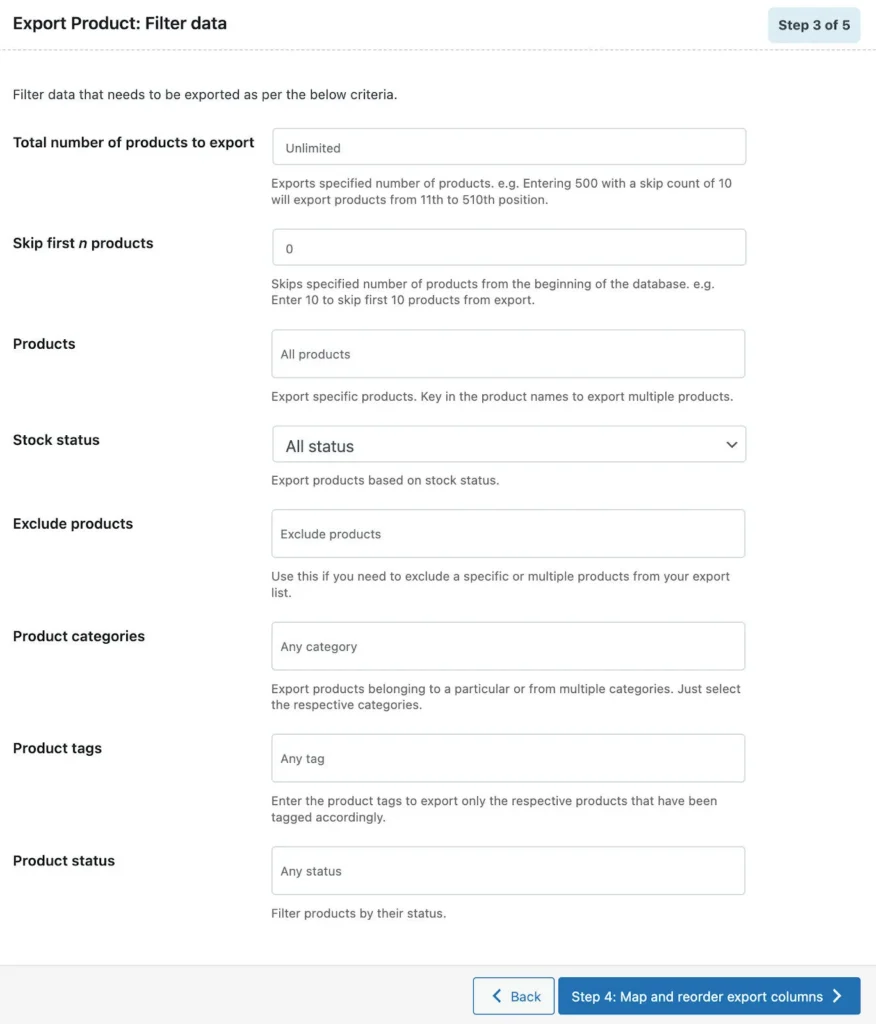
- Click Step 4: Map and reorder export columns to proceed.
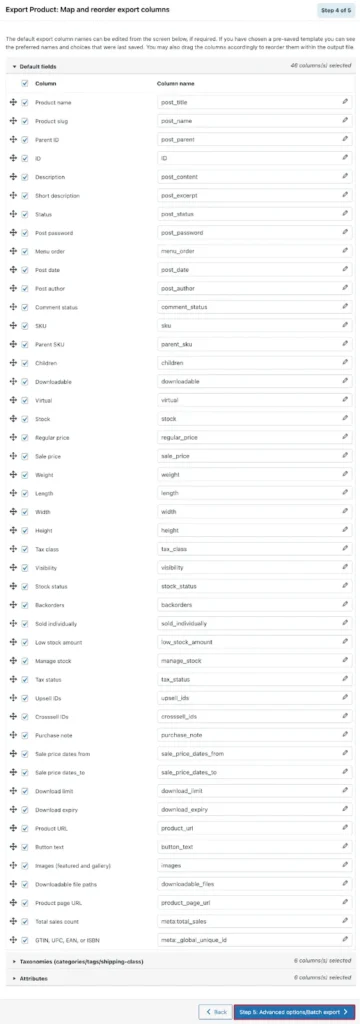
4. Map and reorder export columns
Here, you can choose which product data columns to include and rename or reorder them as needed.
- Proceed to the next step.
5. Configure Advanced product export options
- Set batch size or delimiter preferences.
- Click Export to generate and download your CSV file containing your WooCommerce product data.
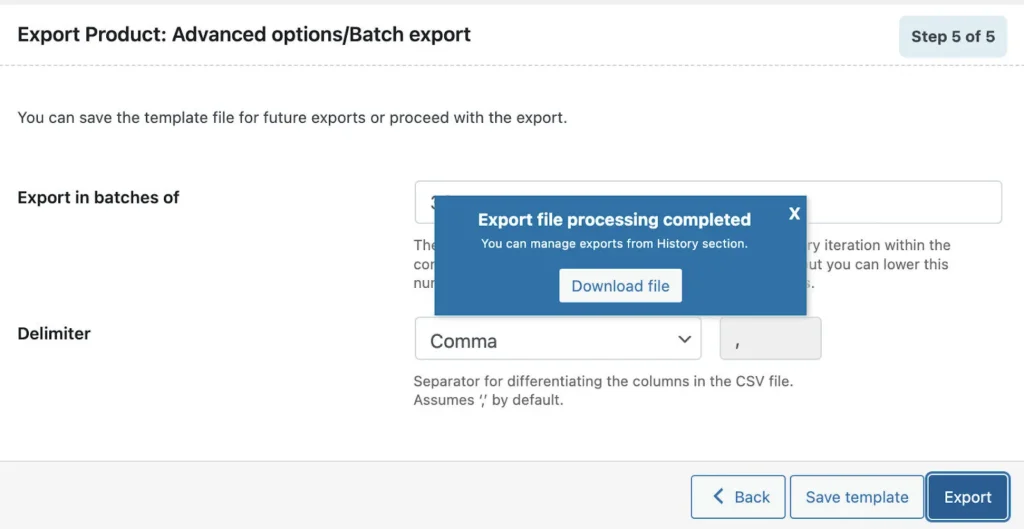
Now that the product data has been exported, the next step is to import it into the new store. If you’re migrating to a WooCommerce store, you can use the same Product Import Export plugin for the import process.
Let’s take a look at how to import product data using the plugin.
How to Import WooCommerce Products Using a Free Plugin?
To import WooCommerce products,
- Go to WebToffee Import Export (Basic) > Import and select Product.
- Click “Step 2: Select import method” to proceed to the next WooCommerce product settings. You can choose between Quick Import and Advanced Import.
If you had used the same plugin to export product data, you can go ahead with the quick import settings. In that case, you just need to upload the CSV file containing WooCommerce product data and click “Import”.
Your product data has been successfully imported to the new store.
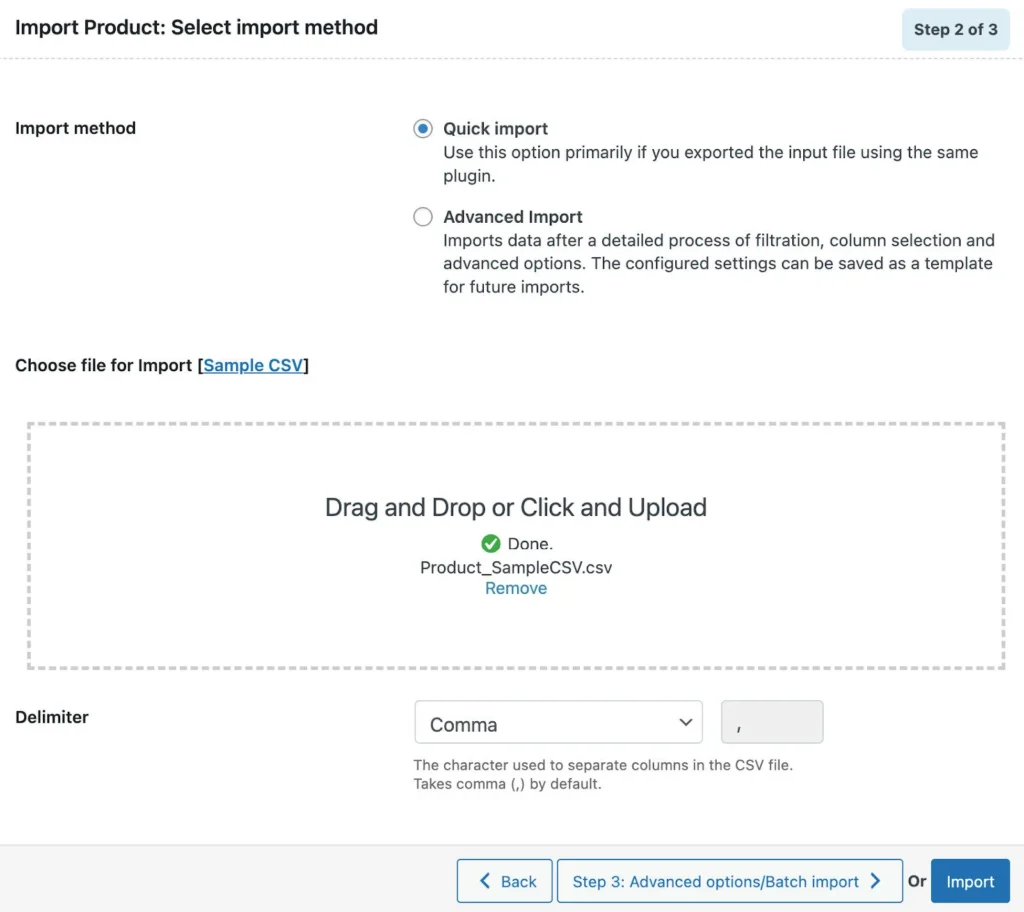
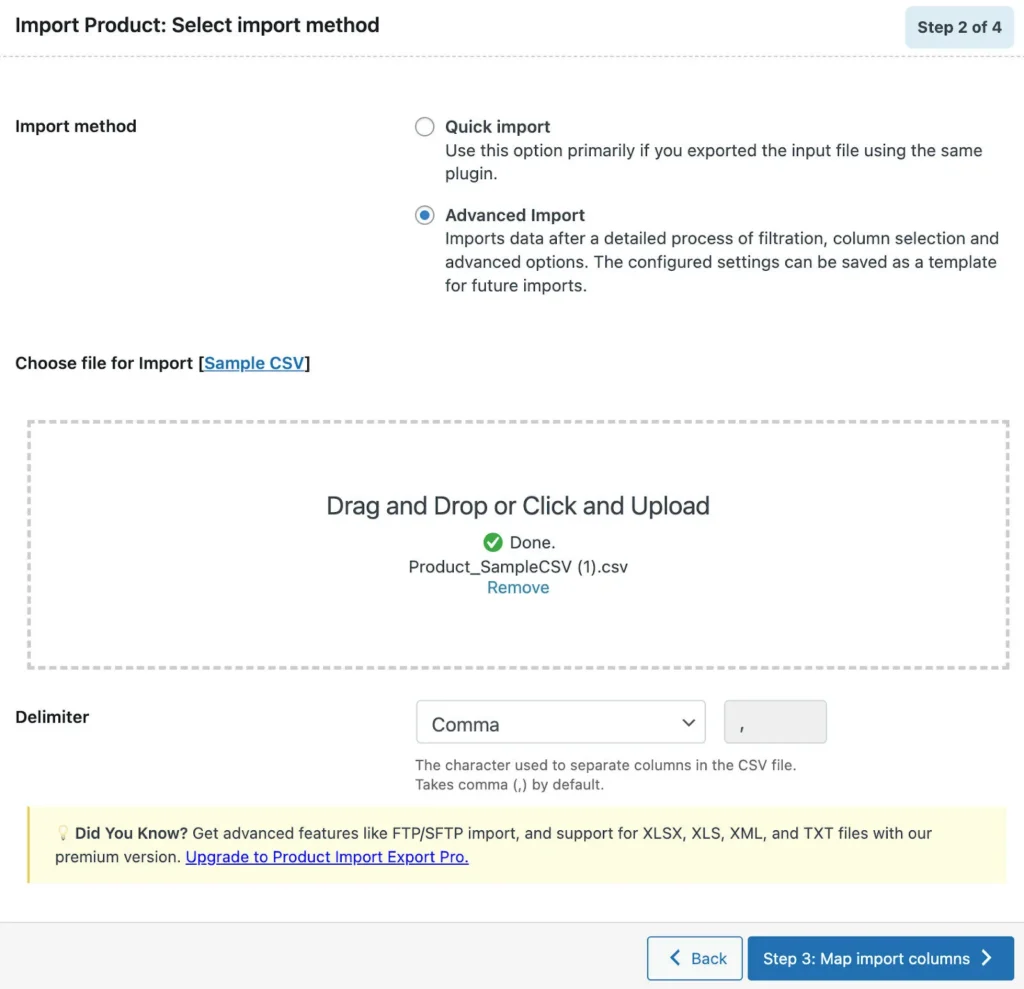
But if you want more flexibility in what needs to be imported, we recommend using the advanced setting. In that case, again, upload the CSV file containing your WooCommerce product data and choose a Delimiter to separate column data.
Click Step 3: Map import columns to refine your import settings.
- The plugin will automatically detect fields and map them accordingly. However, it also lets you adjust manually.
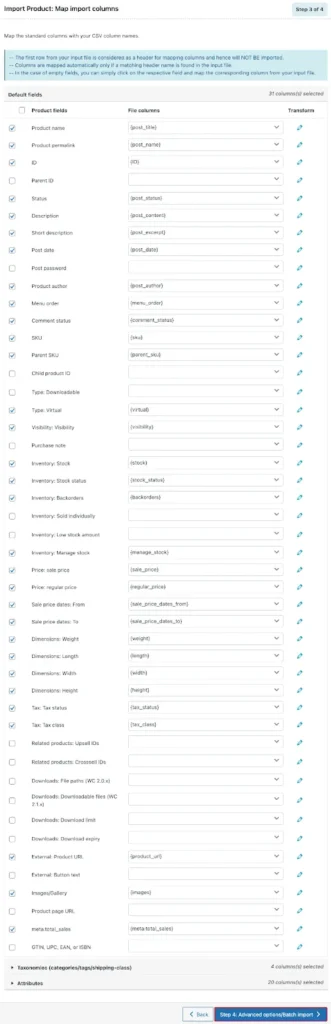
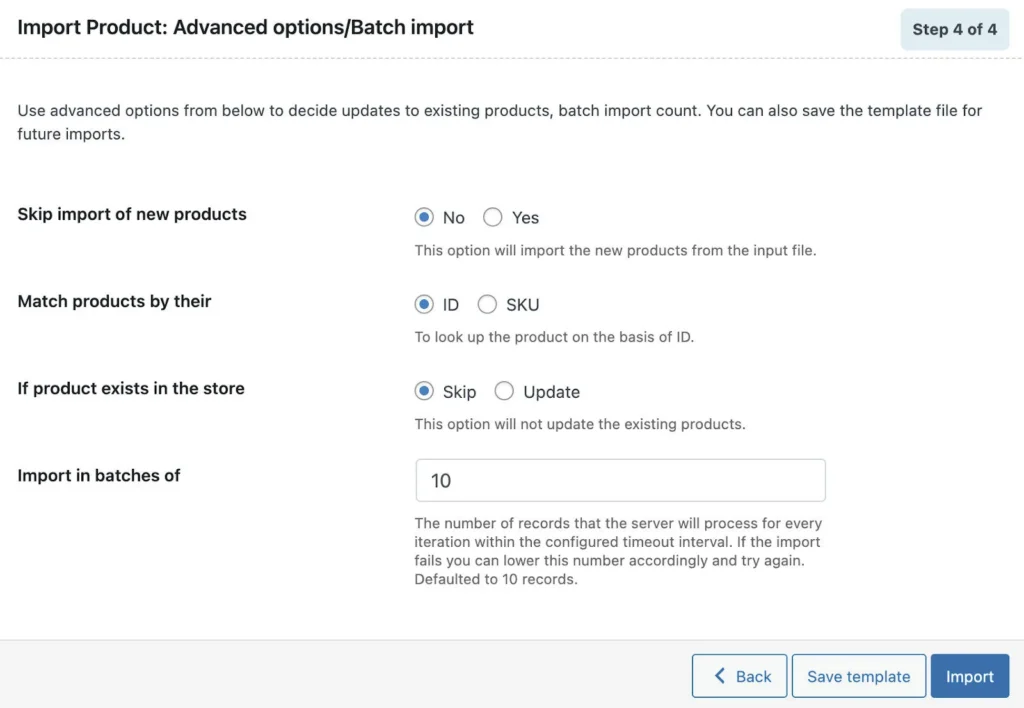
- Move to Step 4: Advanced options/Batch import to configure advanced import options, such as product matching by SKU or ID, updating or skipping existing items, and setting the import batch size.
- Once done, click “Import” to start the product data import process.
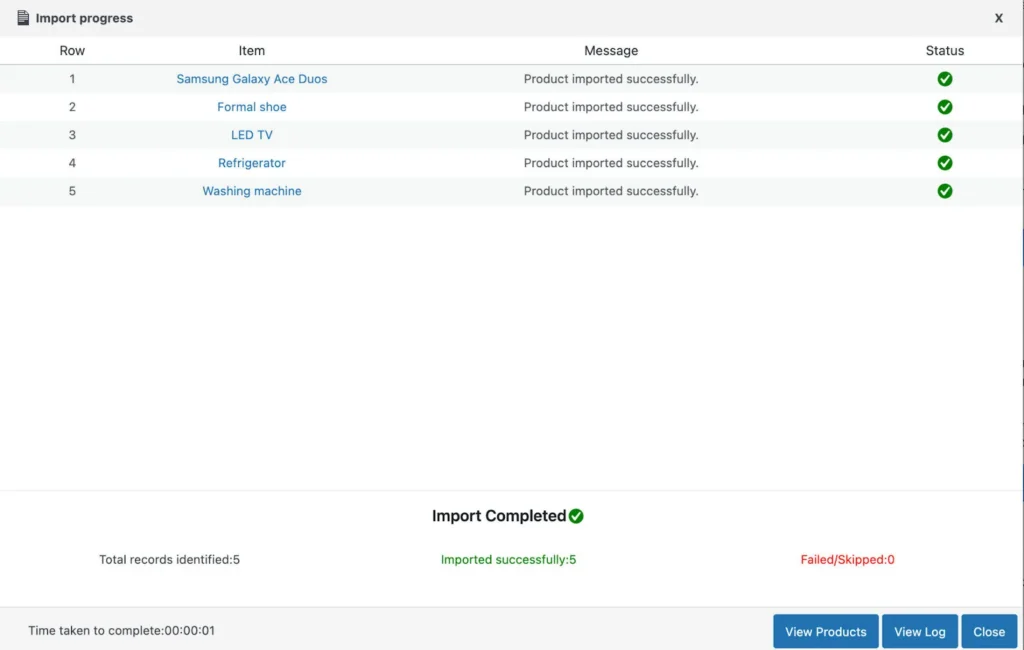
Once complete, a pop-up will confirm the number of products imported successfully and flag any errors.
And that’s it! Your WooCommerce product data is now successfully imported into your new store.
Now that we know how to import and export product data using the WebToffee plugin, let’s explore a few other WordPress plugin alternatives for data migration.
What about orders, customers and other data?
Products are usually only part of a store migration. Plan how you will move:
- Customers and their accounts – with a user import/export plugin, like the one listed below.
- Orders and order history – with an order import/export plugin, also below.
- Reviews, coupons and subscriptions – check whether your migration plugin supports them, as many free plugins do not.
- Settings – payment gateways, shipping zones, taxes and email templates must be set up again on the new store.
If you are moving the whole site to a new domain or host rather than merging stores, a full-site migration or backup plugin that copies the complete database and files is often faster and safer.
Other WooCommerce Migration Plugins
When planning a WooCommerce migration, having additional tools can help address different aspects of your store’s data.
Here are several other WordPress migration plugins that offer data transfer capabilities for site backups, orders, customers, and more.
- WP All Import is a highly customizable import plugin that supports importing almost any post type or data, including WooCommerce products. Its drag-and-drop interface and support for custom fields make it useful for more complex migration jobs.
- Import Export Users and Customers for WooCommerce plugin enables you to transfer your customer base, including their login credentials and purchase data. It simplifies the process of moving users while preserving account details and metadata. A free version is available.
- WP Ultimate CSV Importer provides bulk CSV import for a wide range of WordPress content types, including WooCommerce products, pages, posts, and custom fields. It’s a handy option for users who prefer managing data in a spreadsheet format.
- Order Import Export for WooCommerce is explicitly focused on migrating WooCommerce order data between WooCommerce stores. It allows you to export and import order history, customer notes, and order statuses with accuracy. A free version is available.
- WebToffee Product Import Export for WooCommerce Pro deserves a special mention for its all-in-one capabilities. It simplifies the process of exporting and importing products, especially for users who want granular control over what gets transferred. You can perform both quick and advanced imports/exports, map fields with a drag-and-drop interface, and even export product images and reviews.
The premium version adds powerful capabilities like scheduled migrations, FTP/SFTP connections, compatibility with multiple file types (CSV, XML, Excel, TSV), and meta field support.
After the migration: checklist
- Compare product counts in both stores, including variations and drafts.
- Spot-check products: prices, sale prices, stock, images, galleries, attributes and variations.
- Test the checkout with a test order, including shipping and tax.
- Set up 301 redirects if product or category URLs have changed, so you keep your search rankings and backlinks.
- Submit the new XML sitemap in Google Search Console and Bing Webmaster Tools.
- Clear caches and regenerate product image thumbnails if they look wrong.
Wrapping Up
By now, you have got the idea that migrating WooCommerce products doesn’t have to be complex. With the WebToffee Product Import/Export Plugin, you can transfer product data between stores in just a few guided steps, helping you save time and minimize risk.
With the right tools, WooCommerce migration is not just manageable—it’s refreshingly simple!
Frequently asked questions
Can I migrate WooCommerce products without a plugin?
Yes. WooCommerce has a built-in CSV exporter and importer under Products > Export and Products > Import. It handles standard product data, but offers fewer filters and options than a dedicated plugin.
Will product images be migrated?
The CSV file contains the image URLs, and the importer downloads each image from the old store. Keep the old store online and publicly reachable until the import is finished.
How do I avoid duplicate products when importing?
Give every product a unique SKU and choose to match products by SKU and update existing items in the import options. Then running the import again updates products instead of creating duplicates.




Leave a Reply