
Overview
The monitoring of user authentication is a very critical activity in securing and keeping the efficiency of an Active Directory environment. This manual will assist you with checking user login history in Active Directory with PowerShell, Event Viewer, and automated solutions. It includes scripts, practical considerations, common problems of manual methods, and ways to get precise login data without spending hours manually searching logs.
A Quick Introduction to Active Directory
Active Directory (AD) is the core of large networks. It takes care of user authentication, access rights, and control of policies across the different operating environments. Every user activity, including successful logins, failed login attempts, lockouts, and session details, is recorded in the security logs of the domain controllers. It is in these logs that the administrators will find an important source of checking Active Directory user login history, troubleshooting, and even getting solutions to pinpoint security threats.
The collection of this information manually can become a daunting task as the logs will be scattered among different domain controllers, event IDs will filter the logs, and sometimes the logs will be totally overwritten because of the large size limit.
Why You Need to Check Active Directory User Login History
Administrators have various reasons to review the login history in AD:
#1 Security Monitoring
- Monitor for suspicious logins
- Detect unauthorized access late at night
- Examine security incidents
#2 Troubleshooting Failed Logins
- Monitor for repeated login failures
- Check if incorrect passwords caused account lockouts
#3 Compliance Audits
- Authenticate for audits with an authentication history
- Keep compliance with standards like SOC 2, HIPAA, and PCI DSS
#4 IT Operations and Support
- Know who has access to particular servers or workstations
- Watch activity during downtimes
- Help HR or internal inquiries
#5 Account Management
- Find out the existence of inactive accounts
- Get to know the last login times before account deletion or reactivation
How to Check Active Directory User Login History With PowerShell
Here is a practical PowerShell approach to check user login history in Active Directory:
# =====================================
# Script to Get AD User Login History
# =====================================
# Specify the username
$User = “username” # Replace with target AD user
# Export path for CSV
$OutputFile = “C:Logs$User-LoginHistory.csv”
# Get all domain controllers
$DCs = Get-ADDomainController -Filter *
# Array to store results
$Results = @()
Write-Host “Collecting login events for user ‘$User’ …” -ForegroundColor Cyan
foreach ($dc in $DCs) {
Write-Host “Scanning DC: $($dc.Hostname)…”
try {
# Query successful logons (Event ID 4624)
$events = Get-WinEvent -ComputerName $dc.Hostname -FilterHashtable @{
LogName = ‘Security’
Id = 4624
}
foreach ($event in $events) {
$acctName = $event.Properties[5].Value
if ($acctName -eq $User) {
$Results += [PSCustomObject]@{
User = $acctName
TimeCreated = $event.TimeCreated
LogonType = $event.Properties[8].Value
Workstation = $event.Properties[11].Value
DomainController = $dc.Hostname
}
}
}
} catch {
Write-Warning “Cannot read logs from DC: $($dc.Hostname)”
}
}
# Sort and export to CSV
$Results | Sort-Object TimeCreated -Descending | Export-Csv -NoTypeInformation -Path $OutputFile
Write-Host “Completed! Login history saved at: $OutputFile” -ForegroundColor Green
Challenges of Using PowerShell
- Security logs on domain controllers are a high-level permission necessity, and if not, then the scripts either will not work or will give incomplete information.
- Access to the remote log might be interrupted: The event collection across domain controllers via PowerShell is stopped due to either firewall rules, network segmentation, or remote log access being disabled.
- Busy domain controllers are heavy on processing: A huge number of logon events is the cause of slow, resource-consuming searches and disruptions in the performance of the domain controller.
- Different operating systems yield different log formats: The differences in the versions of Windows Server shared in the network lead to differences in event properties, requiring the scripts to be adjusted constantly.
- Retaining logs is not enough: The security logs overwriting the older entries very fast results in gaps in the login history if logs are checked too late.
- Filtering out the noise is not easy: Logons of service, machine, and system accounts pollute results and make it harder to isolate and interpret the data that is really useful.
Easier Way to Check Active Directory User Login History
The automated tool, such as SysTools AD Reporter, is a perfect solution to check Active Directory user login history without any manual procedure. Instead of manually scripting or searching logs, this tool consolidates AD login data and generates clear reports. It is particularly useful in large environments or for frequent audit reporting.
Steps to Use This Tool:
- To begin with, you need to open the SysTools AD Reporting software and log in using a proper user account.
- After that, you should register the Domain Controller by clicking on the button that says Register Domain Controller to include your AD environment.
- Then you will enter both the Domain Friendly Name and the IP of the Domain Controller and proceed to save the settings.
- Next, you will be required to provide credentials with administrator-level access to ensure that the tool can reach and review the Active Directory data and the security logs.
- At this point, you can access the Report tab through the user interface, and it will show you the various reporting options that are there.
- Under Users, select the Login report to get the generated history of user logins.
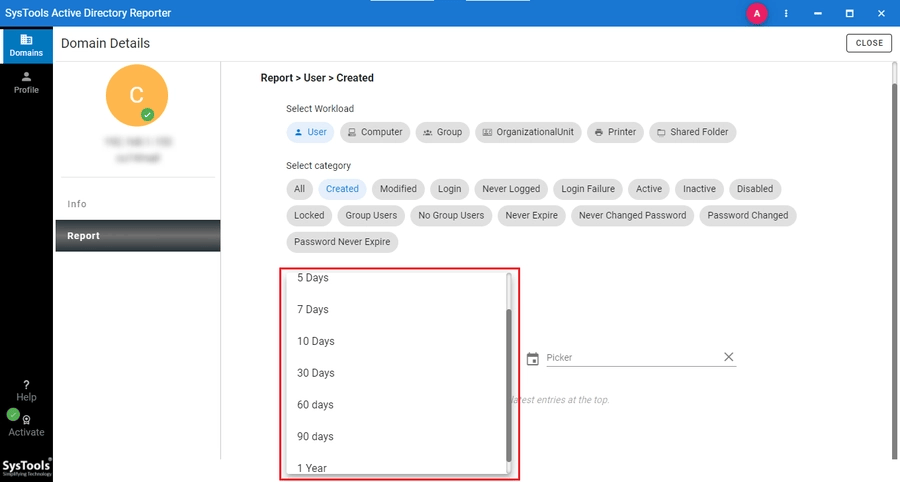
- You may want to apply a filter by time, such as the last few days, weeks, or a custom date range, to reduce the number of events regarding login.
- Click on Preview to generate and view the list of login events that will show the usernames, timestamps, and DC details.
- You can use the Download Report option to get the results imported as a CSV file for further examination or to keep as audit evidence.
Conclusion
Monitoring authentication patterns is a must for AD administrators. Knowing how to check Active Directory user login history with PowerShell comes in handy for one-time queries only, but automated tools are time savers, error-free, and less cumbersome compared to reporting via manual intervention. Besides, maintaining accurate login history is a great help in the areas of auditing, troubleshooting, and detecting suspicious activity across all domain controllers.





Leave a Reply