
One of the best things about our digital lives is having contacts. They help us stay in touch with people we know from work, family, and friends. A lot of people use Microsoft Outlook to keep track of their contacts. OST files are where Outlook keeps its data. You can’t open OST files directly on your phone or in the cloud, though.
You need to convert your Outlook contacts to vCard format if you want to migrate them to your smartphone or cloud services like iCloud or Google Contacts. Most mobile phones, email services, and cloud services can open VCF files. In this blog post, you’ll learn two easy techniques for converting OST contacts into VCF. First, we’ll talk about the manual way. Next, we’ll also look at a simple fix utilizing a tool that works.
Why Convert OST Contacts to vCard
- Before we start the process, let’s talk about why you need this conversion.
- Android, iOS, Gmail, iCloud, and most email clients can open VCF files.
- VCF format makes it easy to import and export contacts.
- A single VCF file can have one or more contacts.
- You can save your Outlook contacts in a format that is easy to move about.
- VCF contacts are simple to share and keep track of.
Converting OST contacts to VCF is the most effective method for achieving the goal of having your Outlook contacts stored on your mobile device or in the cloud with you.
How to Manually Export OST Contacts to VCF
From within Outlook, you can save contacts. If you are able to access your Outlook account and the OST file, you will be able to use it. Carry out the activities listed below.
- Start Microsoft Outlook on your computer
- Click on the tab that says File
- Click on Import/Export after choosing Open and Export.
- Choose Export to a file and then click Next.
- Click Next after selecting Comma Separated Values (OST).
- Choose the Contacts folder in your mailbox and click Next
- Look over the file and save it as an Outlook file on your computer.
- Now open the OST file and make sure all the contact information is correct.
- To convert OST to VCF, open Google Contacts in your web browser.
- Sign in with your Google account
- Add the OST file to Google Contacts
After you import, choose contacts and export them as vCard (VCF).
You are not required to pay anything for this process, and you do not need any specialized software to do it. In addition, you will need to be connected to the internet, and it may take longer than expected. When working with Outlook files, you need to be careful because the data fields do not always align in the usual manner.
The Manual Method has some problems
- You have to convert Outlook Contacts to vCard format.
- The procedure takes a long time and is not good for big contact lists.
- There is a chance of losing data if the fields don’t match up right.
- You need to have access to Outlook and Google accounts.
- It’s not easy for people who aren’t tech-savvy to use.
You might desire an automated solution if you have a lot of connections or want a quick and safe way.
Automatically convert OST contacts to vCard (.vcf)
Softaken OST to VCF Converter is a simple software that lets you convert Outlook contacts to vCard (.vcf) format right away. It does not need to use any other software or Outlook to complete the process. Even individuals who are not familiar with this application will have no trouble using it because it features a user interface that is simple and straightforward.
Key Features Of the Tool
- OST contacts can be converted to VCF without using Outlook.
- Work with files from all versions of the Outlook application.
- All of the information, including your name, phone number, email address, and address, as well as any notes, should be kept.
- At the same time, export one or more contacts.
- Perform flawlessly on all Windows operating systems like Windows 11, 10, 8.1, 8, 7, Vista, and XP.
- Allow you to be shown a preview prior to the conversion.
- Offer the ability to save VCF files in any location on your computer.
- In order to save time, allow you to export in batches.
How to Use the Outlook OST to VCF Converter
- Download the tool and open it on your PC.
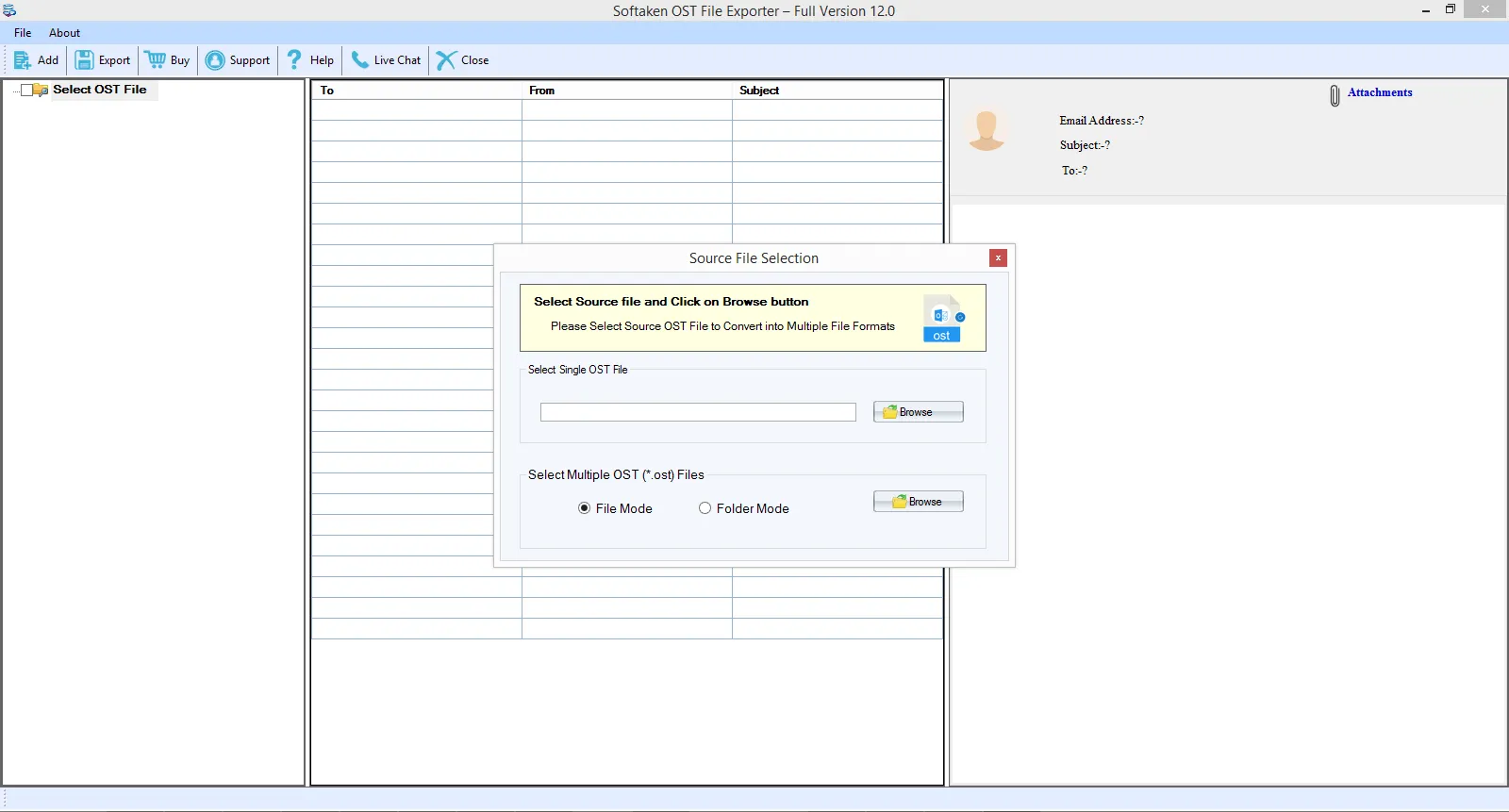
- Click on Add File and choose the OST file you want to add.
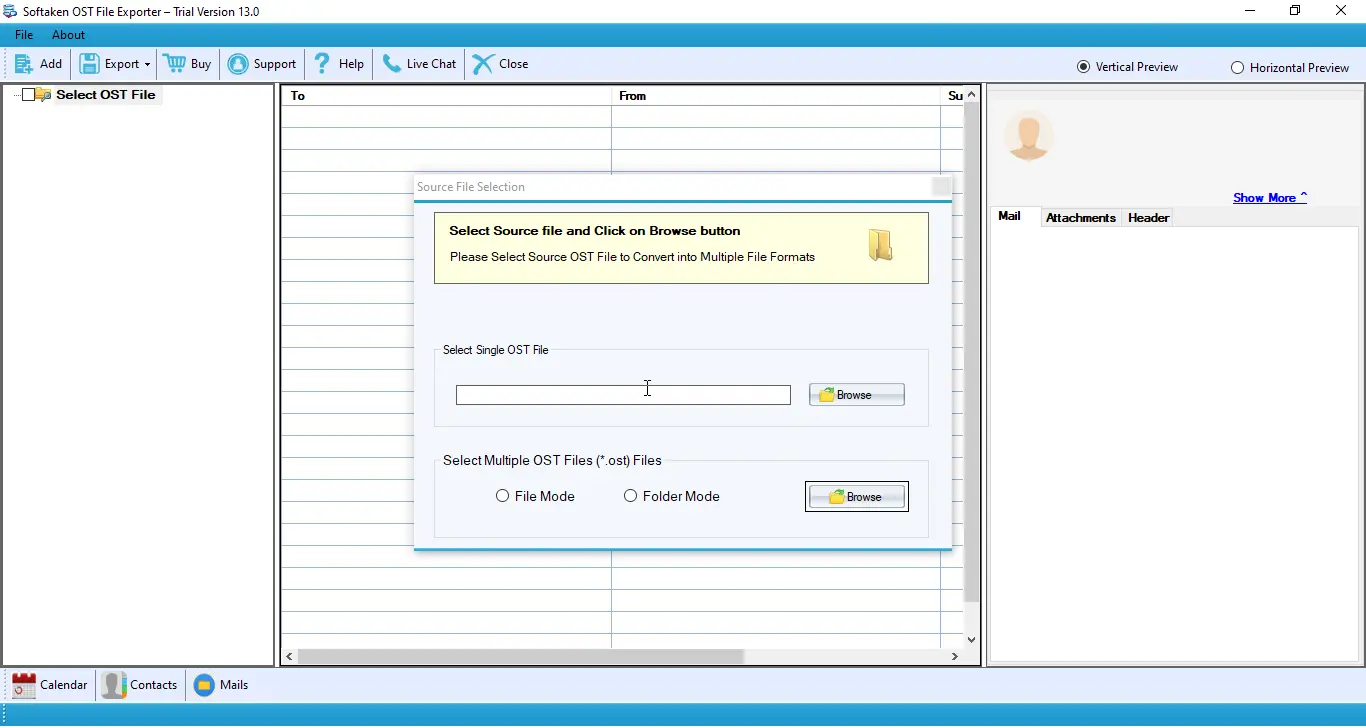
- The tool will scan the file and display all of the contacts.
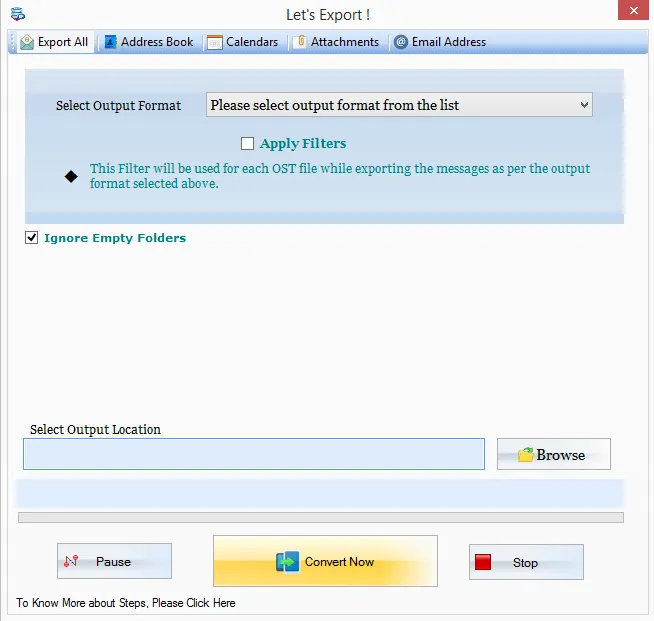
- Pick the contacts you want to export.
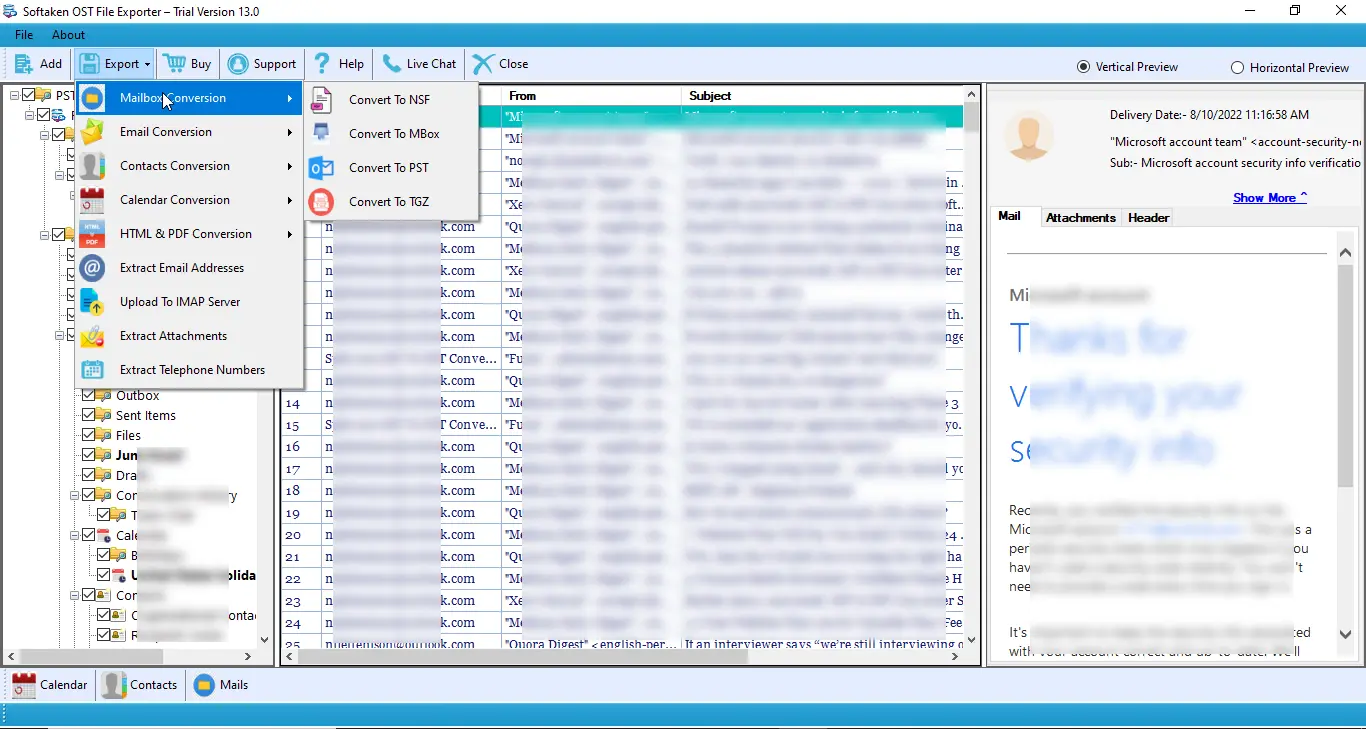
- Choose the option to export to VCF
- Select a folder where you want to save the file.
- Click Convert to start the process.
Your Outlook contacts will be ready in VCF format in only a few seconds. After that, you can add them to your Android phone, iPhone, Gmail, or iCloud account.
Advantages of Using the Tool
- It is a quick and straightforward conversion, and there are no additional processes involved.
- All of the contact information is secure, and there is no loss.
- It is compatible with OST files of any size.
- Doesn’t need any technical expertise
- When compared to manual approaches, it can save both work and time.
- Has the ability to manage both individual and multiple contacts in VCF
Conclusion
The best way to use your Outlook contacts on a mobile device or in the cloud is to convert them to VCF format. You can use Outlook and Google Contacts to try the manual technique. But it can take a long time and be hard, especially if you have a lot of contacts.
The Outlook OST to vCard Converter software is a good solution for a straightforward and safe experience. It converts directly, keeps your data safe, and saves you time. You can quickly migrate contacts from OST to any mobile or cloud service using this tool.





Leave a Reply