
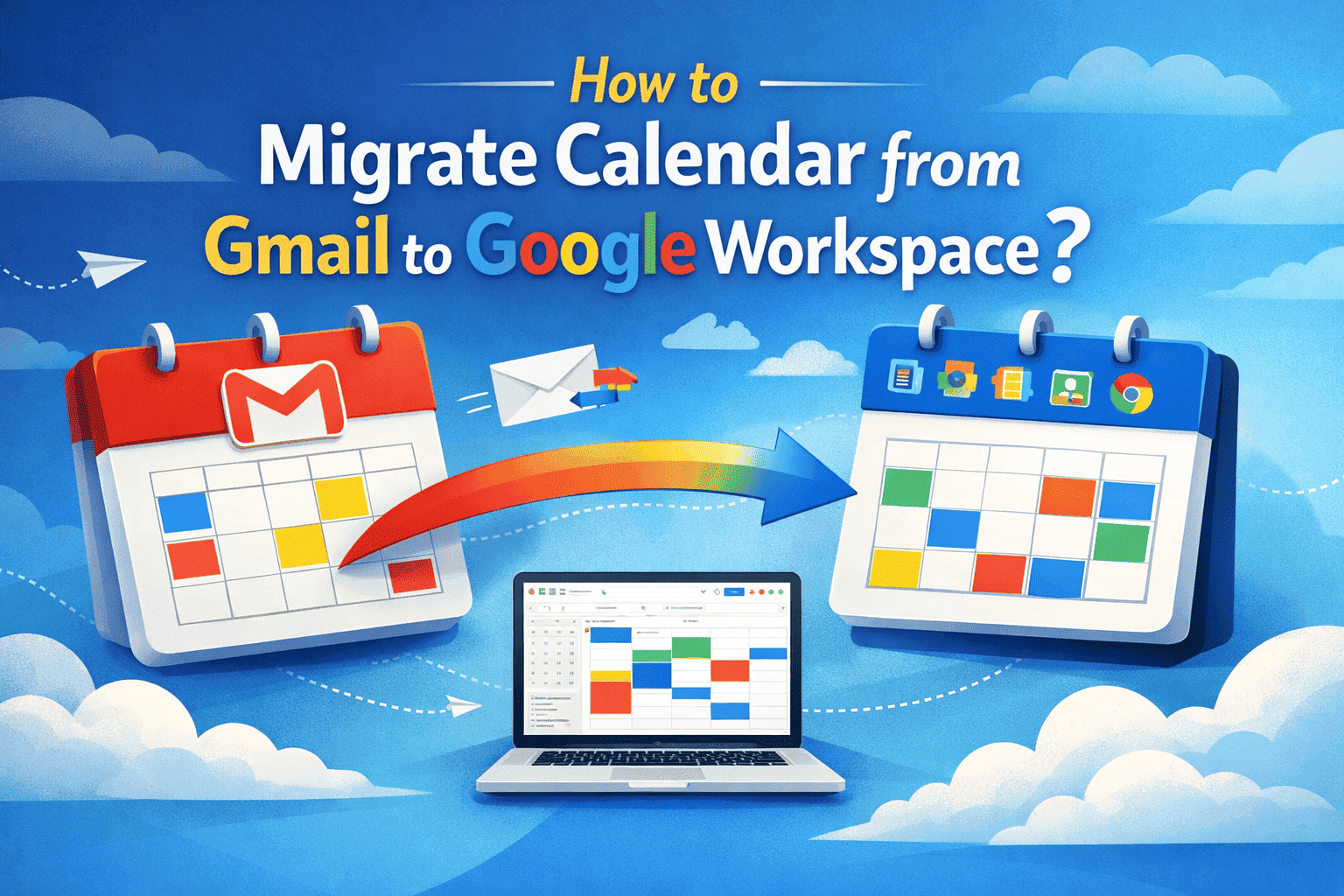
Those who want to move their calendar events from a personal Gmail account to G Suite. This article will help as it provides you with different ways to migrate your calendar from Gmail to Workspace. I will properly explain all the methods with clear steps. So, read the article to the end.
Gmail is a web email application where you can manage your emails. Google Workspace is a paid subscription platform that provides cloud productivity tools for businesses. Both programs are integrated with Google Calendar, where you can manage your calendar for personal and professional work. There are some scenarios where one has to move their calendar events from gmail account to G Suite. To know those circumstances, I have mentioned them below.
Reasons for Migrating Calendar from Gmail to Workspace
- Google Workspace provides a secure platform to manage multiple users’ calendar events. Therefore, by moving your important events to the G Suite, you can easily control access, apply policies, and more.
- An individual user owns the calendar with a Gmail account. Shifting these calendars to the G Suite allows the organization to access the data and prevent any data loss.
- By transferring the calendars to the Google Workspace, you can support better sharing, visibility, and coordination among team members.
- Using G Suite, you can get advanced security controls like access management, audit logs, and compliance features to handle sensitive data.
- Integrating your calendars in G Suite allows you to work with Google Meet, Drive, Sheets, and other productivity tools.
Hence, moving the Gmail calendar to G Suite provides you with many benefits. That’s why many people want to do it. So, let’s see the ways to transfer your calendars.
Manually transfer Gmail Calendar to G Suite
This is the simple way to move your calendar from a personal account to a professional account. First, you have to save your Gmail calendar on your computer using the steps below.
- Login to the Gmail account and click on the Calendar option on the right panel.
- Click Open in another tab to go to the Google Calendar.
- Select the gear option at the top and click on the Settings button.
- From the left side panel, select the Import & export option.
- Click on the Export button. Your calendar will be saved in the zip format. So, extract the downloaded file to move it.
Imported Exported Calendar to Google Workspace
After extracting the ZIP file, your calendar file will be available in ICS format. Now, I am going to open this file in the G Suite.
- Log out of your Gmail account and then sign in to the G Suite account.
- Navigate to the Google Calendar and go to Settings by clicking the gear icon.
- Select the Import & Export button on the left panel.
- Then, choose the Import option and click the Select file from your computer.
- Go to the location where your extracted ICS file is stored.
- Import the file into the G Suite calendar.
This method is a one-time way to transfer your calendar. Now, other than moving from a personal to a professional account. Other users want to move Google calendar from one account to another. If you also want that, then below is the perfect solution for you.
Migrate Calendar from Professional Gmail to Google Workspace
Those who need to move their calendar to another account. They can use the G Suite Migration Tool by SysTools. A perfect software to move your data without any data loss. It is a great software where you can move several types of data, including emails, contacts, calendars, and documents. It is very easy to use, as you have to provide the necessary details and then, with one click, transfer your calendar. To know the steps in detail, follow the steps below.
Steps to Use the Professional Tool
- Start the procedure by downloading and installing the tool
- Then, click G Suite options in both the source and destination tabs.
- In the Workload section, click on the calendar button. To move the specific calendar, click on the date filter.
- Now, in the source tab, enter the Admin Email, Application ID, and Certificate File of the source account. Hit the Validate button to check the permission of the source account.
- Provide Admin Email, Application ID, and Certificate File of the destination account. Also, click the validate button to check the permission.
- Now, add the users, and click on the Fetch User button to automatically add the users.
- For manual, select the download template to get the sample CSV. Add the source and destination User IDs and submit to the Import Users.
- Once you add the user mapping, click on the Validate button to check the user accounts’ permissions.
- Now, you can set the user priority and then click on the Start Migration button.
Conclusion
Here are the ways to migrate calendar from Gmail to Workspace. In this, I have mentioned several reasons to transfer the calendar data. And then provide ways to move the data from personal to professional account and professional to professional account. I explained both the methods clearly so it is easy to follow.



Leave a Reply