
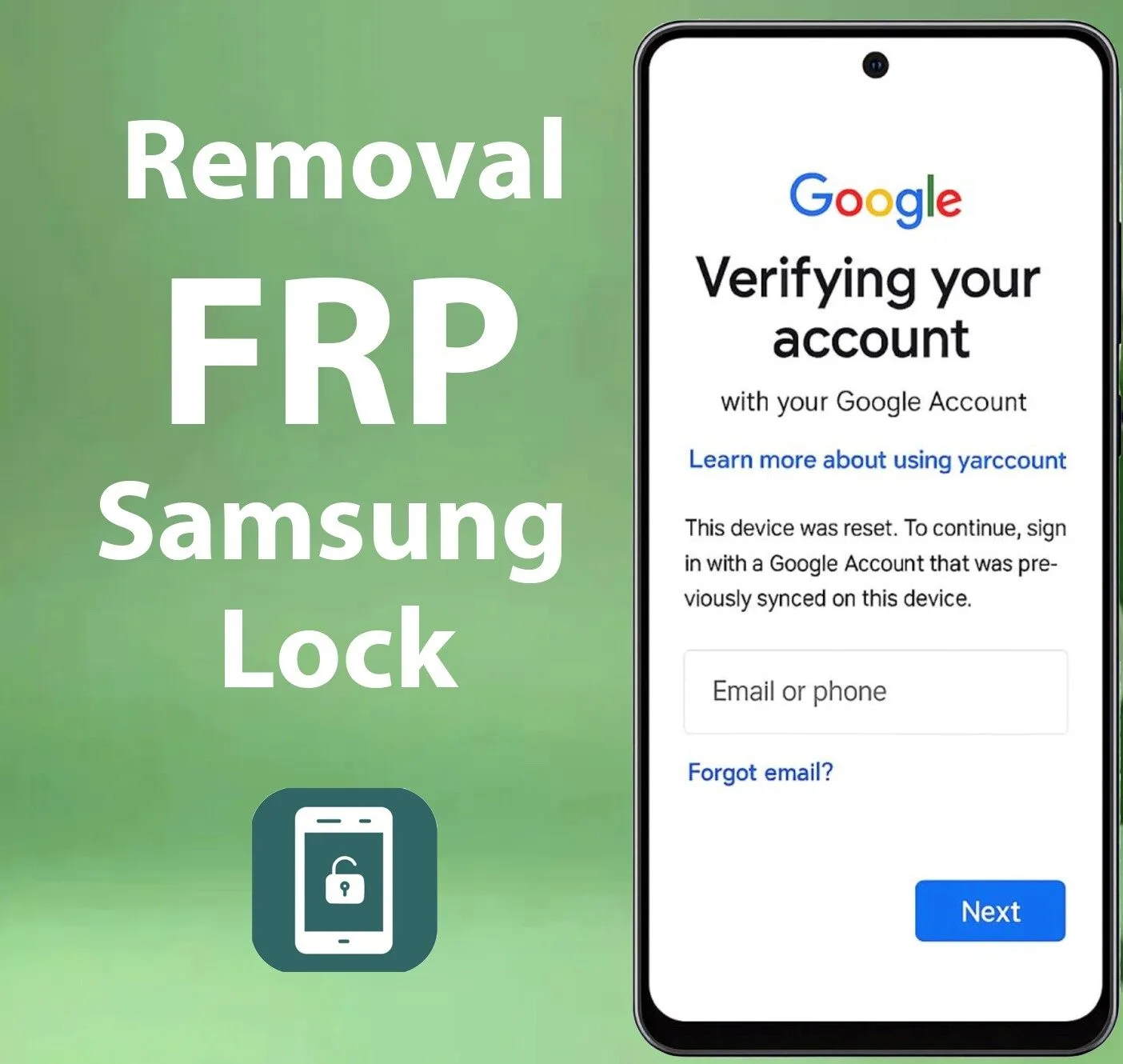
If you’re stuck on a Samsung FRP lock (Factory Reset Protection) after a reset, you’re not alone. FRP is a security feature on Android devices that activates after a reset when the system detects that a Google account was previously linked to the device. The goal is simple: stop thieves from wiping a phone and using it like new.
But if you’re the real owner, you bought a used device, or you forgot the Google account details, you still have legal ways to regain access. In this guide, you’ll learn two methods to remove the Samsung FRP lock using the IMEI number: (1) the official, usual way, and (2) using the UnlockBoom service.
Important: FRP removal should be performed only on devices you legally own or are authorised to unlock. Always keep proof of purchase when possible.
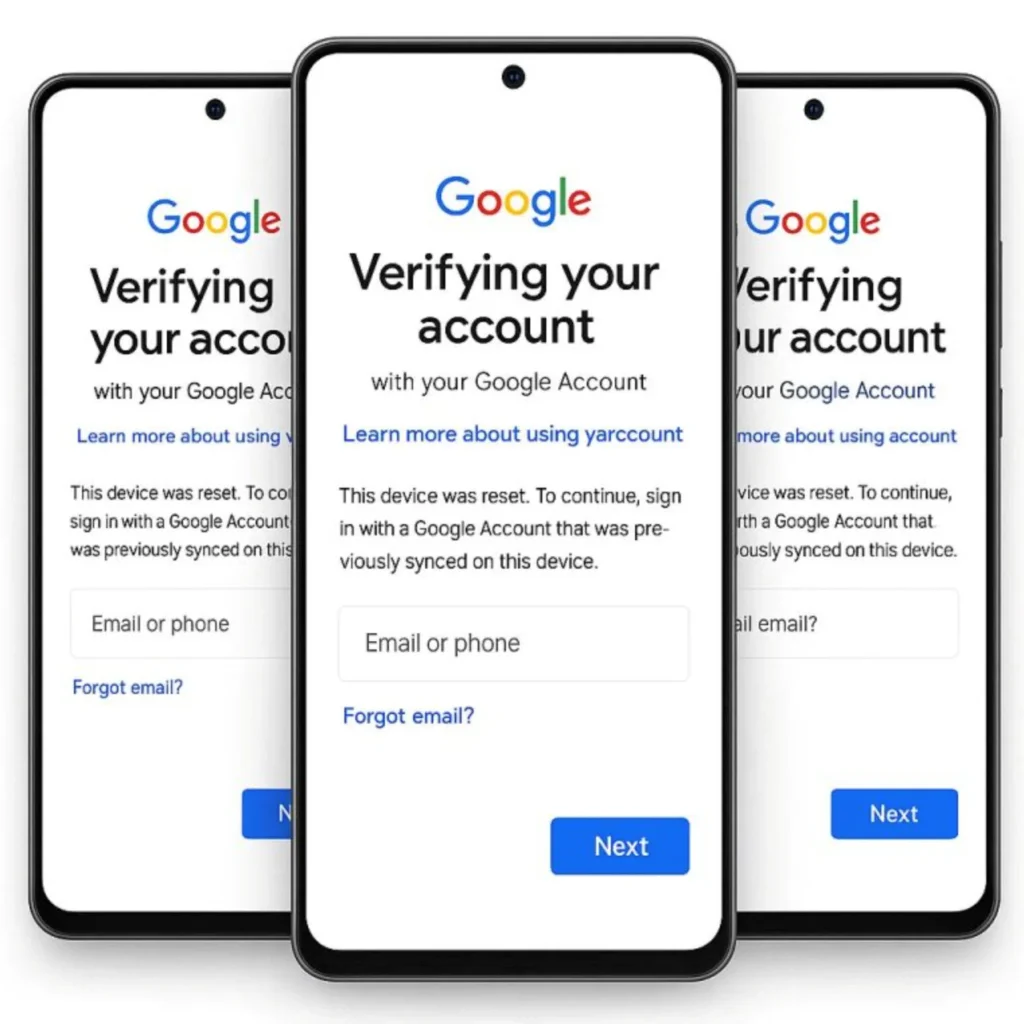
What Is Samsung FRP Lock and Why IMEI Matters
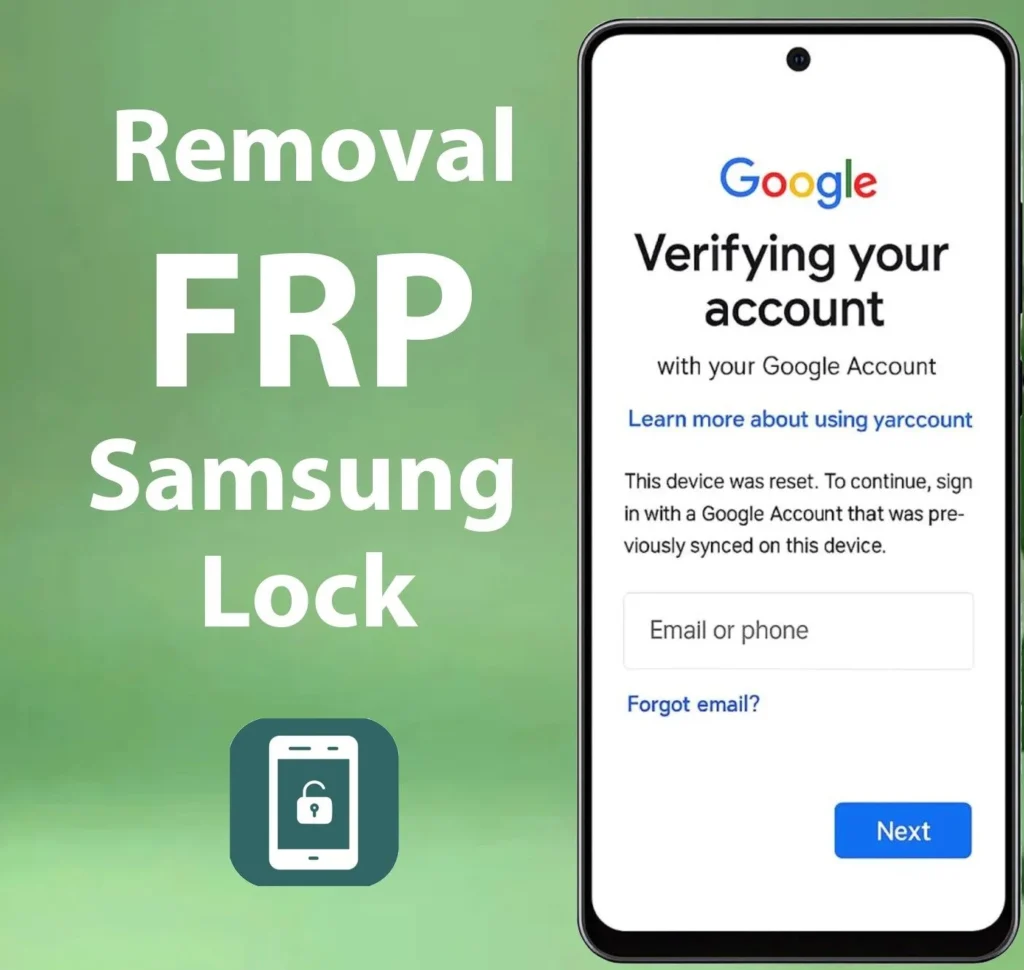
FRP (Factory Reset Protection) is automatically enabled when a Google account is added to the phone, and a screen lock (PIN, pattern, or password) is set. After a factory reset, the device may ask you to verify the previously synced Google account. Without it, you cannot complete the setup.
The IMEI number is the unique identity of your Samsung device. It helps confirm the exact model/variant, supports eligibility checks, and is often required for support or service requests to match a device to proof-of-purchase records.
How to find your IMEI:
- Dial *#06# (if you can access the dialer).
- Check the SIM tray label (available on many models).
- Check the device box label.
- Look at the receipt/invoice documents.
- If accessible: Settings -> About phone -> IMEI.
Method 1: Official Normal Way to Remove FRP Lock (Recommended)
This is the best method when you are the legitimate owner and can access the original account details or documents.
Step 1: Sign In With the Correct Google Account
If you remember the email and password:
- Connect the phone to Wi-Fi.
- On the verification screen, enter the previously used Google account.
- Complete the setup usually.
Tip: If you forgot the details, use Google’s account recovery options (recovery email/phone) and then try again on the device.
Step 2: Wait 24-72 Hours if the Password Was Recently Changed
Many devices apply a security delay after a Google password change. If you changed the password recently, the phone may require a waiting period. Keep the phone connected to Wi-Fi and try again after 24-72 hours (varies by device and policy).
Step 3: Use Proof-of-Purchase Support
If you cannot recover the Google account but you are the rightful owner, contact the retailer, your mobile carrier, or Samsung support (policy varies by region). Be ready to provide documents that prove ownership and match the device.
Proof that is commonly requested:
- Invoice/receipt with device details.
- Box label that matches IMEI/serial.
- Carrier contract paperwork (if applicable).
- Owner details match the purchase record.
Why IMEI matters here: support teams often request the IMEI/serial number to verify the device and match it against your documents.
Pros (Official Method):
- Safest and most legitimate route.
- No risk of malware or unstable tools.
- Works on all models when ownership can be verified.
Cons (Official Method):
- Requires the correct Google account or proof of purchase.
- It may take time depending on support processing.
Method 2: Remove Samsung FRP Lock via IMEI Using UnlockBoom Service
If the official way is not possible (for example, account recovery fails, or you bought a used phone and the seller is unavailable), a professional IMEI-based service can be a practical solution. UnlockBoom uses your IMEI to identify your device and apply the correct unlock solution for your Samsung model and security version.
When This Method Makes Sense
- You legally own the phone, but cannot access the previous Google account.
- You bought a used device, and the seller did not remove the Google account.
- You have the IMEI and want a guided, simplified process.
- You want to avoid risky random FRP tools found online.
What You Need Before You Start
- Your Samsung IMEI number.
- Device model (optional but helpful).
- Country/network details if requested (depends on variant).
- A stable internet connection is required to complete the setup after processing.
Step-by-Step: UnlockBoom FRP Removal (IMEI Method)
- Find your IMEI (dial *#06#, or use the box/SIM tray label).
- Visit UnlockBoom and choose the Samsung FRP service.
- Enter the IMEI carefully and double-check the digits.
- Submit the order and follow the instructions provided for your exact model/security version.
- After completion, follow the steps to finish the setup and regain access.
Why many users prefer an IMEI service over random tools: many free bypass tools are outdated, model-limited, or risky. An IMEI-based service is typically more consistent across models/updates and reduces trial-and-error.
Pros (UnlockBoom Method):
- Uses IMEI to match the right solution to your device.
- Helpful when official recovery is not possible.
- Saves time compared with testing many tools.
- Clear instructions tailored to your device.
Cons (UnlockBoom Method):
- Service-based (not free).
- Requires correct IMEI details.
- Availability may depend on device/security status.
Best Practices After FRP Removal
After you regain access, do this immediately to prevent future lockouts:
- Add your own Google account.
- Enable 2-factor authentication.
- Save recovery email/phone details.
- Keep proof of purchase and the device box.
- Before selling the phone, remove the Google and Samsung accounts, then perform a factory reset.
Final Thoughts
Removing the Samsung FRP lock via IMEI is possible when you follow legitimate methods. Start with the official route if you can recover the Google account or prove ownership. If that is not possible, an IMEI-based service like UnlockBoom can help you regain access with a guided process based on your device details.




Leave a Reply