
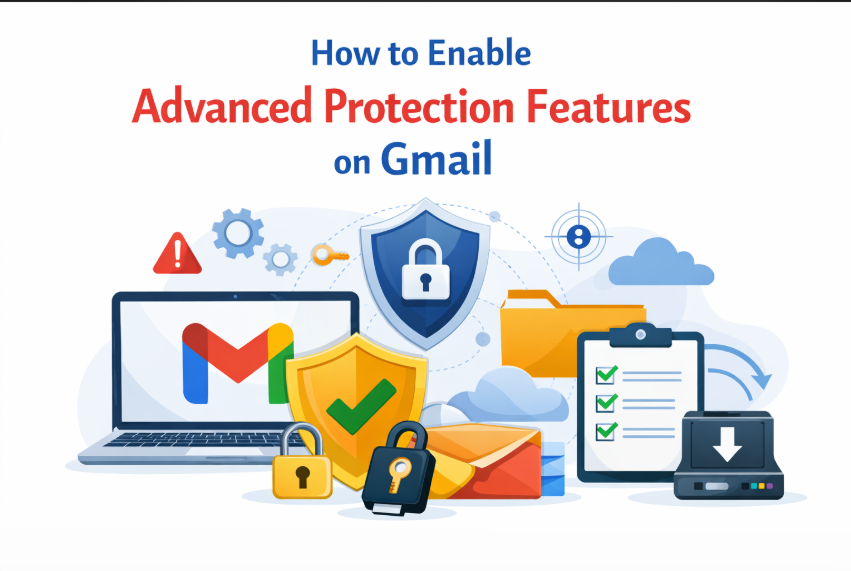
Blog Overview: Worried that your Gmail could be hacked, locked, or compromised? You’re not alone. Many people enable security features but still miss one critical layer of protection. In this guide, you’ll learn how to enable advanced protection features on Gmail step by step—and more importantly, how to truly secure your emails so you never lose access or data.
Why Advanced Protection Matters
Think of your Gmail like your home. A simple password is just a lock on the front door. But today’s cyber threats are like expert thieves—they don’t break the door, they trick you into opening it.
Gmail’s Advanced Protection Program is designed for people who need stronger security. It protects against phishing, blocks risky apps, and adds stronger login verification.
But here’s the truth most people overlook:
Security protects access, not your data.
If something goes wrong like account lockout or recovery failure, you can still lose your emails.
How to Enable Advanced Protection Features on Gmail
Follow these simple steps to activate Gmail’s strongest security layer:
- Open your browser and go to Google’s Advanced Protection page.
- Sign in with your Gmail account.
- Click Get Started and follow the setup instructions.
- Add a security key (physical or built-in on your device).
- Turn on 2-Step Verification if not already enabled.
- Review and restrict third-party app access.
Once enabled, your account becomes much harder to hack.
Think of it like upgrading from a regular lock to a bank vault system. Even if someone knows your password, they still can’t get in easily.
What Changes After Enabling Protection
Let’s simplify this with a small story.
Imagine a teacher who keeps all student records in Gmail. Before protection, anyone with the password could try to access it. After enabling Advanced Protection:
- Only trusted devices can log in
- Suspicious login attempts get blocked
- Unknown apps lose access
It’s like having a security guard checking every visitor before they enter.
This makes your Gmail significantly safer—but not invincible.
The Hidden Risk Most People Ignore
Here’s where things get serious.
Advanced Protection focuses on preventing attacks, not recovering data.
Now imagine this situation:
- You get locked out of your account
- Google takes time to verify your identity
- Or worse, emails get deleted accidentally
Even with the strongest protection, your data can still be at risk.
It’s like installing CCTV cameras in your house—but not keeping copies of your valuables anywhere else.
Common Mistakes While Securing Gmail
Many users believe they are fully protected after enabling security features. But a few common mistakes can still put them at risk:
- Relying only on passwords and 2-step verification
- Ignoring email backup completely
- Assuming Gmail stores everything forever
- Not preparing for account recovery delays
Security without backup is incomplete protection.
Smarter Approach: Add a Safety Net
The smartest way to protect your Gmail is to combine security + backup.
Security prevents problems.
Backup solves problems when they happen.
This is where a Gmail Backup Tool becomes essential.
It allows you to:
- Save your emails safely on your system
- Access data anytime, even without a Gmail login
- Protect important emails from accidental loss
Think of it like keeping a duplicate key and a safe copy of your important documents outside your house.
How Backup Complements Gmail Security
When both work together:
- Advanced Protection blocks unauthorized access
- Backup ensures your emails are never lost
This combination gives you complete control over your data.
Who Should Take Backup Seriously
Backup is not just for tech experts. It’s useful for:
- Professionals handling important emails
- Business owners managing client communication
- Teachers and students storing records
- Anyone who values their email history
If your emails matter, backup matters.
Quick Self-Check
Ask yourself:
- Can I afford to lose my emails for even one day?
- Do I have a copy of my important conversations?
If the answer is no, your setup is incomplete.
Common Misconception
Many people believe:
“Gmail keeps my data safe forever.”
But in reality, access issues, deletions, or syncing errors can still affect your emails.
Quick Checklist Before You Rely on Gmail Security
- Advanced Protection enabled
- 2-Step Verification active
- Backup of important emails created
Signs You Need Extra Protection
- You receive frequent phishing emails
- You use Gmail for work or business
- Your account holds sensitive data
One-Minute Security Upgrade Plan
- Enable Advanced Protection
- Review account permissions
- Take a complete Gmail backup
Conclusion
Enabling advanced protection features on Gmail is a powerful first step. It strengthens your defenses and keeps threats away. But true peace of mind comes when your data is safe—even if something unexpected happens.
Combine strong security with a reliable backup, and you turn your Gmail into a system that is not just protected—but fully secure and dependable.



Leave a Reply