

Managing up with contacts is a crucial responsibility for both personal and professional users. Users can save contact files in MSG format if they use Microsoft Outlook. Nevertheless, neither email clients nor mobile devices generally accept this format. The easiest way to make your contacts portable and shareable is to convert them to VCF (vCard) format.
This article will go over the significance of this conversion, frequent user problems, and simple, reliable methods for accurately converting MSG to VCF format. Additionally, we shall present TrustVare MSG to VCF Converter, a dependable solution that guarantees precise and secure outcomes.
What are MSG and VCF Formats?
Let’s first understand the two file types before discovering the solution:
- MSG File- Microsoft Outlook generates MSG files, which are used to store individual emails, contacts, appointments, or tasks. MSG files include information on contacts, such as names, addresses, phone numbers, and emails.
- VCF File- Often described as a vCard, VCF files are a common format used to store contact details. CRMs, cloud services, email apps, and smartphones all support them extensively.
VCF files are much more effective for importing and exchanging contacts since they are platform-independent.
Why Convert MSG to VCF?
When using MSG files outside of Outlook, many users have trouble. Here are a few common reasons for conversion-
- Mobile Accessibility- Only VCF files for contacts are supported by Android and iPhone smartphones. It is not possible to import MSG contacts directly.
- Cross-Platform Support- Among many other platforms, VCF works with Gmail, iCloud, Thunderbird, and Yahoo Mail.
- Simple Sharing- There are no problems sharing VCF files over WhatsApp, Bluetooth, or email.
- Backup Goal- Contacts saved in VCF are guaranteed to be stored for a long time in a format that is widely recognized.
Converting to VCF is perhaps the best option to get around MSG’s issues.
What is the Manual Method?
Microsoft Outlook is used for the manual MSG to VCF conversion process. Users save each MSG contact file separately as a VCF (vCard) file after opening it in Outlook. This approach helps convert a limited number of contacts because it is free and doesn’t require any extra software.
How to manually convert MSG to VCF?
- Open Outlook- Launch Microsoft Outlook on your computer.
- Open the MSG file- Double-clicking the msg contact file will open it in Outlook, or you can just drag and drop it.
- Save as a vCard (VCF)– On File > Save As, click.
Select vCard Files (.vcf) from the Save as format.
After choosing your location, save the file. - Repeat for each contact- Unfortunately, you can only export one contact at a time using this approach.
You have to manually repeat the procedure in multiple MSG files.
The manual method has a few limitations
- One contact at a time-You are unable to convert several MSG contacts at once. Everyone needs to be saved independently.
- Time-consuming- When there are many contacts, the procedure slows down.
- Data Integrity Issues- Occasionally, some fields (such as custom notes or photos) are not accurately saved.
- Outlook required- It is necessary to have Outlook installed to complete this procedure.
Because of these factors, manual conversion is not appropriate for large users or those seeking a quick and error-free fix.
Try the Reliable Application for Converting MSG to VCF
TrustVare MSG to VCF Converter is the greatest option for bulk, safe, and precise MSG to VCF conversion. For both technical and non-technical users, this tool is intended to simplify the procedure. Convert MSG to VCF format with precision using trusted techniques to ensure smooth contacts migration. Reliable MSG to VCF conversion solutions give users—both personal and professional—quick, precise, and safe outcomes.
Key Features of TrustVare MSG to VCF Converter
- Batch Conversion- Exporting multiple MSG contacts to VCF at once.
- Preserves Details- Name, email, phone number, picture, address, and custom fields are all kept on file.
- User-Friendly Interface- An intuitive layout that makes use easy.
- Outlook Not Needed- The software functions without the need to install Microsoft Outlook.
- High Compatibility- Compatible with all MSG files produced by Outlook versions.
During conversion, data accuracy guarantees that no information is lost or altered.
For anyone wishing to convert MSG files to VCF using accurate and dependable methods, this is a dependable solution.
How To Use the Tool?
It’s a really easy process. Take these actions-
- Install the Tool- download MSG to VCF Converter on your computer and launch the software.
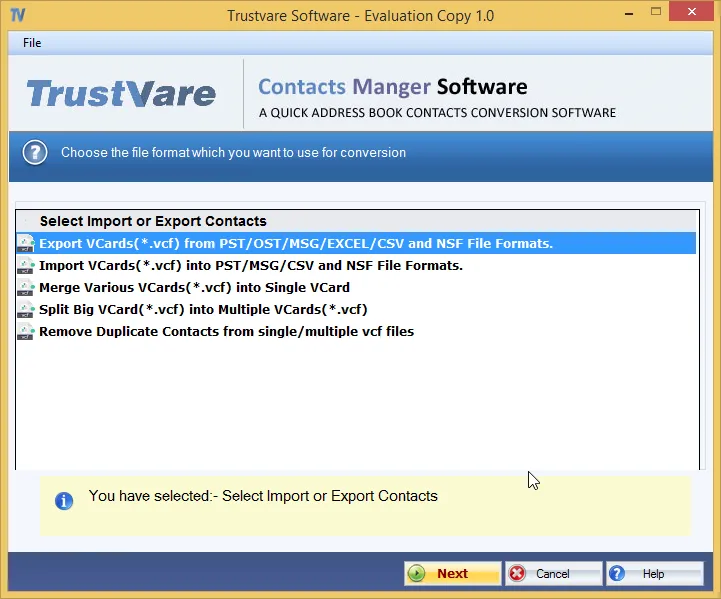
- Add MSG Files- Choose one or more MSG contacts by clicking the Browse button.
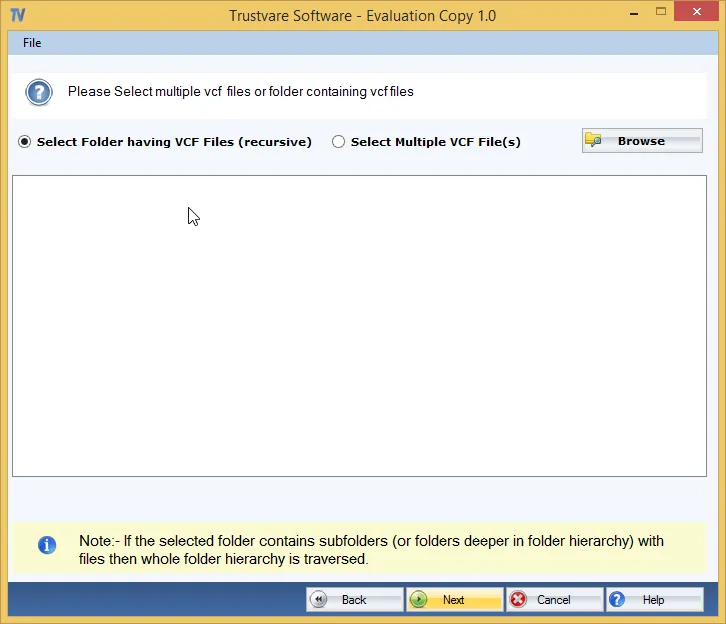
- Select VCF Format- The output format that you should choose is VCF.
- Select the location- choose the path in which you want to save your file.
- Start the Conversion- After selecting Convert, your MSG contacts will be in VCF format in a matter of seconds.
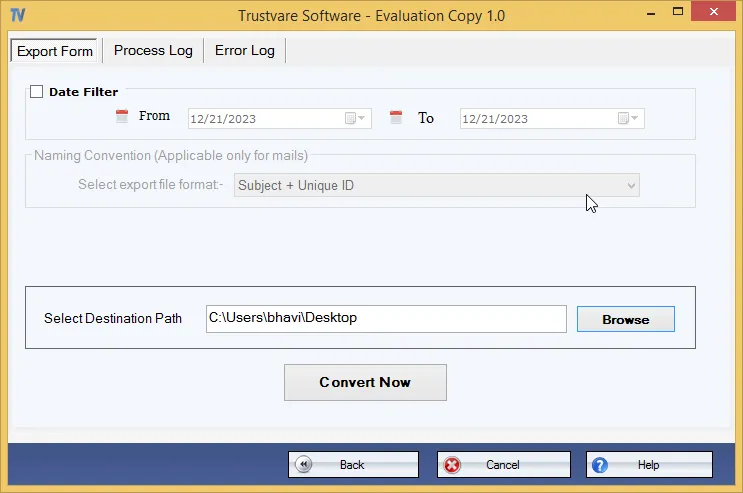
That’s it! No technical knowledge is necessary.
Conclusion
For your Outlook contacts to be easily accessible, shareable, and cross-platform compatible, you must convert them from MSG to VCF format. Manual techniques take a lot of time and might cause data loss. The best option is to use a professional instrument to guarantee a rapid, accurate, and seamless operation.
A dependable tool that makes the process easy for everyone is the software. It stands out as the reliable method for converting MSG to VCF because of its characteristics, including bulk conversion, complete data preservation, and an intuitive interface.




Leave a Reply